How to Get Rid of Black Bars
Black bars come from an aspect-ratio mismatch between the stream and your screen. They're normal — and CloudGear gives you several ways to remove them.
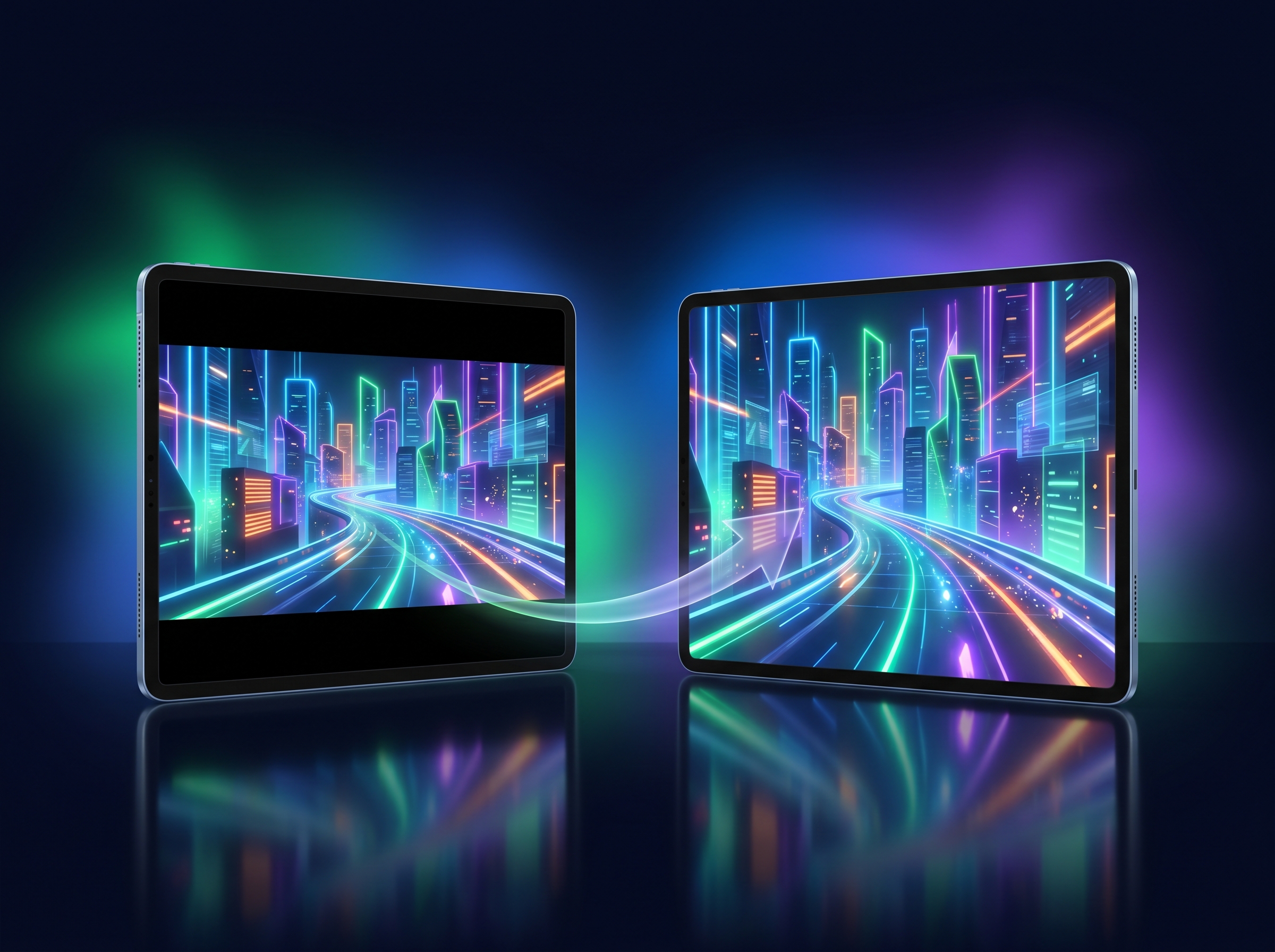
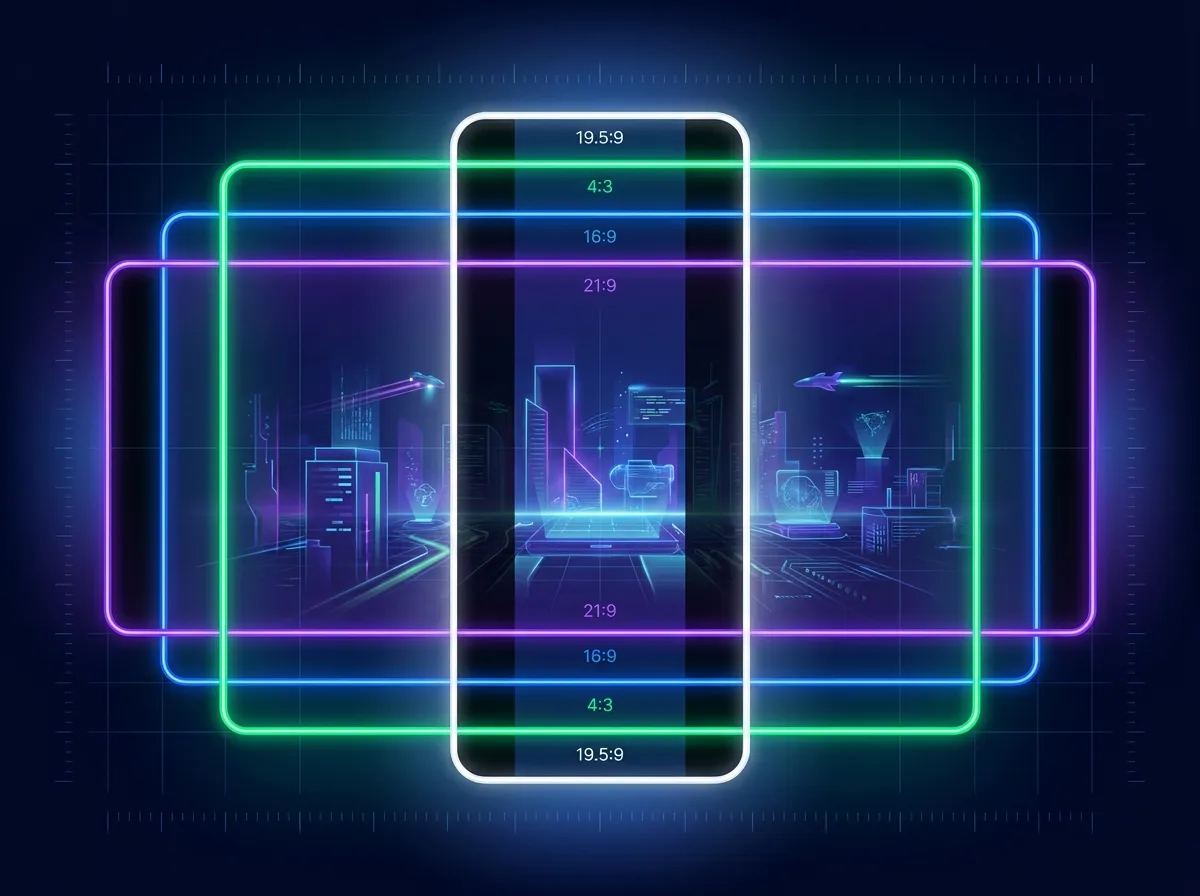
Those empty strips around your game — black bars down the sides (pillarboxing) or along the top and bottom (letterboxing) — are one of the most common things players ask about. They aren’t a bug or a streaming fault. They appear whenever the aspect ratio of the game stream doesn’t match the aspect ratio of the screen you’re playing on. A modern iPhone has a tall, roughly 19.5:9 screen, while most games stream in a 16:9 frame, so the picture doesn’t fill the display edge to edge.
The good news is that CloudGear gives you several ways to remove them. The right one depends on where you’re playing: on your device’s own screen, on an external TV or monitor, or on an Apple TV through the companion app. All three work differently, so we’ll cover each.
The Quick Fix: Zoom
The fastest way to fill your device’s screen is to change the video sizing mode. While you’re streaming a game, open the in-stream menu (the three-dot ··· button), choose Video sizing, and select Zoom.
Zoom scales the video up until it fills the entire screen while keeping the correct aspect ratio, so nothing looks stretched. The trade-off is that it crops the edges of the picture, and how much it crops depends on how far apart the two aspect ratios are. Fitting a 16:9 stream to a 4:3 iPad screen, for instance, takes a noticeable amount off the left and right.
Whether that’s a worthwhile trade is down to the game. Many games have nothing important out at the edges and simply look better filling the screen. Others put health bars, minimaps, ammo counts or chat windows right into the corners, and Zoom will cut into them. If that happens, use Manual instead: it lets you set the scale and position yourself, so you can reclaim most of the screen while keeping the parts you actually need to see.
All Four Video Sizing Modes
Video sizing lives in the in-stream menu and gives you four ways to fit the picture to your device’s screen:
- Keep Aspect: Displays the entire video frame without distortion. This preserves the original aspect ratio but may leave black bars (letterboxing) if the stream’s aspect ratio doesn’t match your screen. This is the default — and it’s why you see the bars in the first place.
- Zoom: Scales the video to fill the entire screen while maintaining the correct aspect ratio. This removes the black bars but may crop the edges of the picture.
- Stretch: Stretches the video to fill the entire screen. This removes the black bars and shows the full image, but the picture may look distorted because it no longer keeps its original proportions.
- Manual: Gives you total control over the position and scale of the video. Select Manual, then open the menu again and choose Resize video — now you can pinch to zoom and drag to pan the stream to exactly where you want it.
For most people, Zoom is the best quick fix and Manual is the way to dial the picture in precisely.
On iPhone: Reclaim the Notch Area
On iPhone, part of the screen is taken up by the notch or Dynamic Island, and by default CloudGear keeps the video clear of it — which can leave a band of black at the top.
If you’d rather use every pixel, go to Settings > Video and turn on Show video in notch area. The picture will then extend underneath the notch / Dynamic Island instead of stopping short of it. This setting is iPhone-only — iPad doesn’t have a notch to work around.
Boosteroid: Match the Stream Resolution
The sizing modes above scale or crop the picture after it arrives. On Boosteroid, you can go one better and request a stream that matches your screen in the first place.
Open the in-stream menu on Boosteroid and choose Stream Resolution:
- Auto matches the stream to your device’s physical display — or, if you’ve plugged into an external monitor, to that monitor.
- The fixed presets (such as 4K and QHD) force a specific resolution.
- Custom lets you enter an exact width and height to match an unusual screen or aspect ratio.
One important note: changes to the Boosteroid resolution only take effect in a new session. Boosteroid has no manual “end session” button, so to apply a change you’ll need to launch a different game, wait for it to start, then switch back to the game you want — it will start fresh with the new resolution.
On a TV or External Display
Playing on a TV or monitor works a little differently. When CloudGear is driving an external display (Settings > Video > External display > Full Screen), the picture is shown at the display’s own aspect ratio and the video sizing modes above are turned off — so Zoom, Stretch, and Manual won’t change anything there.
That means removing black bars on a big screen is about matching the stream to the screen, and how you do that depends on the service:
- Boosteroid: Set Stream Resolution to Auto. CloudGear streams at your connected monitor’s native resolution, so the picture fills it edge to edge with no black bars. If your display has an unusual aspect ratio, use Custom to enter its exact resolution.
- GeForce NOW: Auto resolution now handles this for you, and it’s on by default. Rather than assuming you’re playing on your device’s own screen, it looks at the display the game is actually being shown on, whether that’s your device, an external display, or a paired Apple TV, and picks the closest match from the resolutions your membership offers. If you’d rather choose yourself, turn Auto resolution off in Settings, then pick a streaming resolution in GeForce NOW’s own in-stream settings, usually 16:9 for a standard TV or monitor.
On an Apple TV
Playing through the CloudGear app for Apple TV behaves like an external display, with one important difference: the Video sizing modes are not available at all. There is no Zoom, Stretch or Manual on Apple TV, so the picture is always shown at your TV’s own aspect ratio.
In practice this rarely matters. Most TVs are 16:9 and most games stream in 16:9, so the picture fills the screen. When it doesn’t, the fix is to change what’s being streamed rather than how it’s displayed, and that’s done on your iPhone or iPad:
- GeForce NOW: leave Auto resolution on. It targets the paired Apple TV, so it picks for the TV you’re watching rather than for the phone in your hand.
- Boosteroid: set Stream Resolution to Auto, or use Custom if your TV has an unusual aspect ratio.
One thing to remember: these settings are applied at the moment the stream starts, so change them before you launch the game. If the picture isn’t right, adjust the setting on your device and start the game again.
Still Seeing Bars?
A couple of things worth checking:
- Some games render their own letterboxing — black bars baked into the game’s image, often for cinematic cutscenes or because the game only supports a 16:9 picture. No client-side setting can remove those, because they’re part of the video the service is sending.
- On iPad with GeForce NOW, expect some bars even with Auto resolution on, and that’s deliberate. GeForce NOW does offer 4:3 modes, but only at low resolutions intended for its own web app. Auto resolution favours a sharp picture over a filled one, so on a 4:3 iPad it steps up to the nearest high-resolution mode (usually 16:10) rather than dropping you to a soft 4:3 one. Zoom or Manual will fill the screen while keeping that detail. If you would genuinely rather have a native 4:3 stream, turn Auto resolution off in Settings and pick one in GeForce NOW’s own in-stream settings.
- Make sure you change the setting while a game is actually streaming. The Video sizing menu acts on the live stream, so it’s only available once you’re in a game.