What Is Cloud Gaming? Play PC & Console Games on Your iPhone or iPad
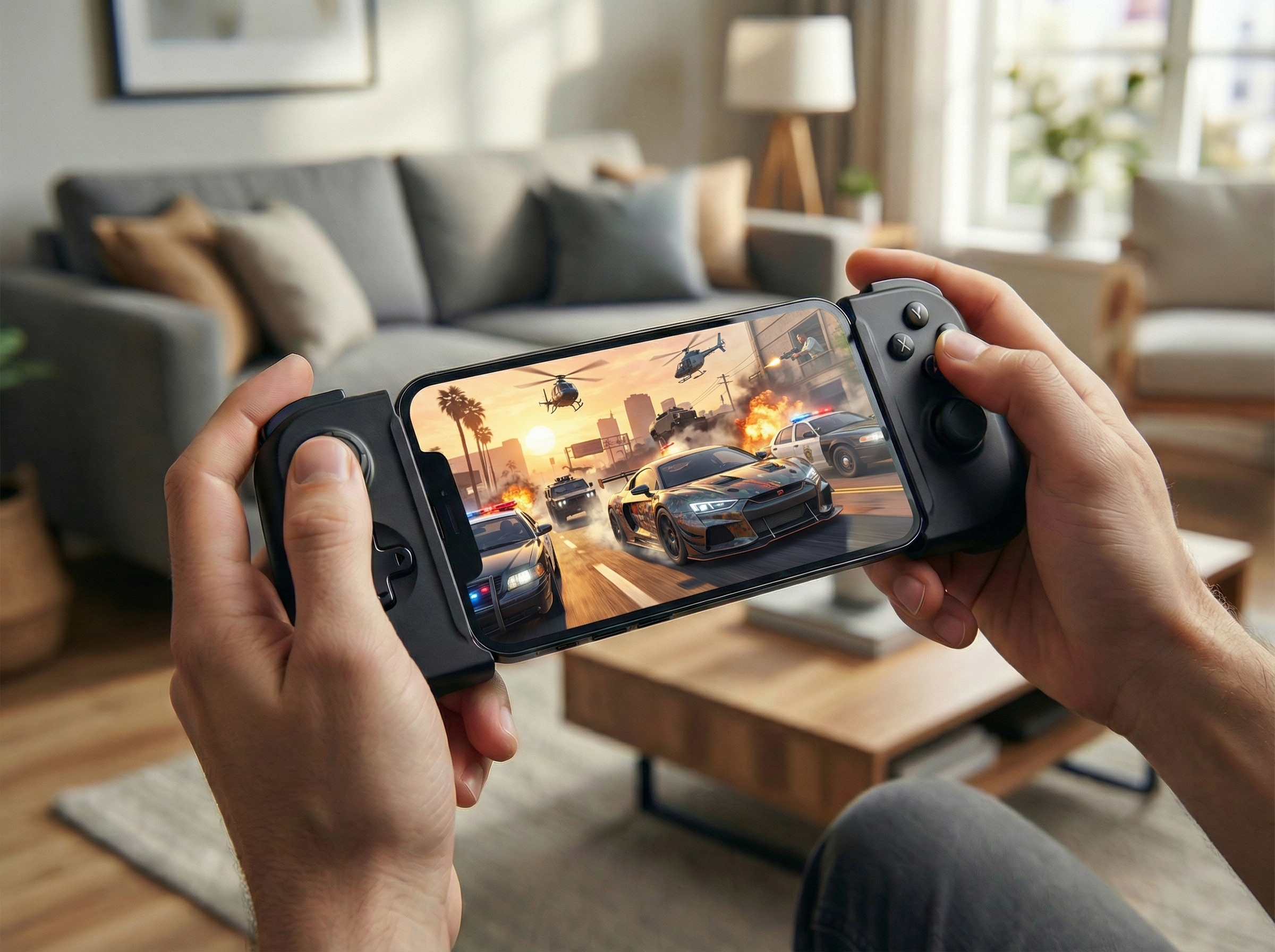
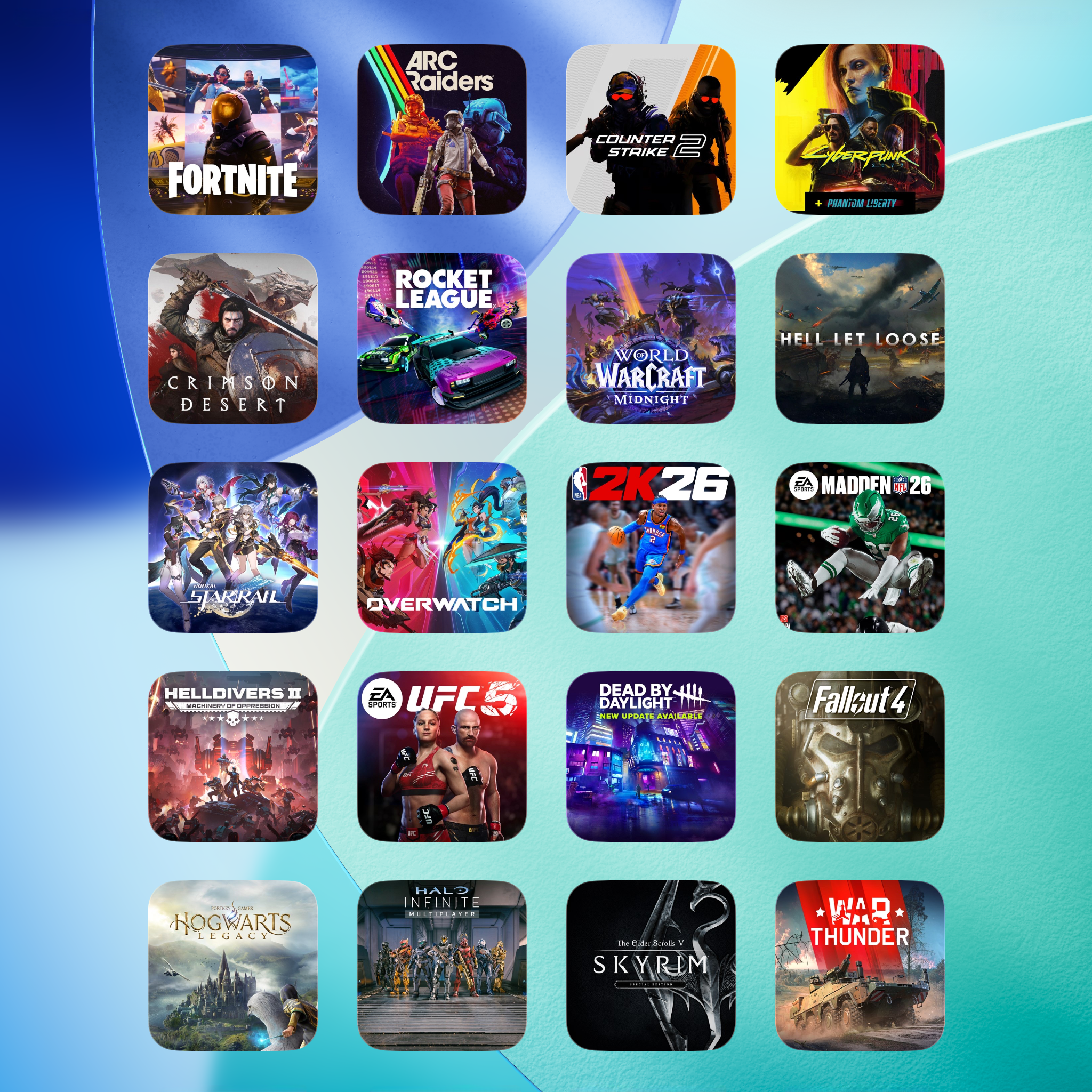
Cloud gaming streams full PC and console games straight to your iPhone or iPad — no $500 console or $1,500 gaming PC required. Here's how it works, what it costs, and how to start.

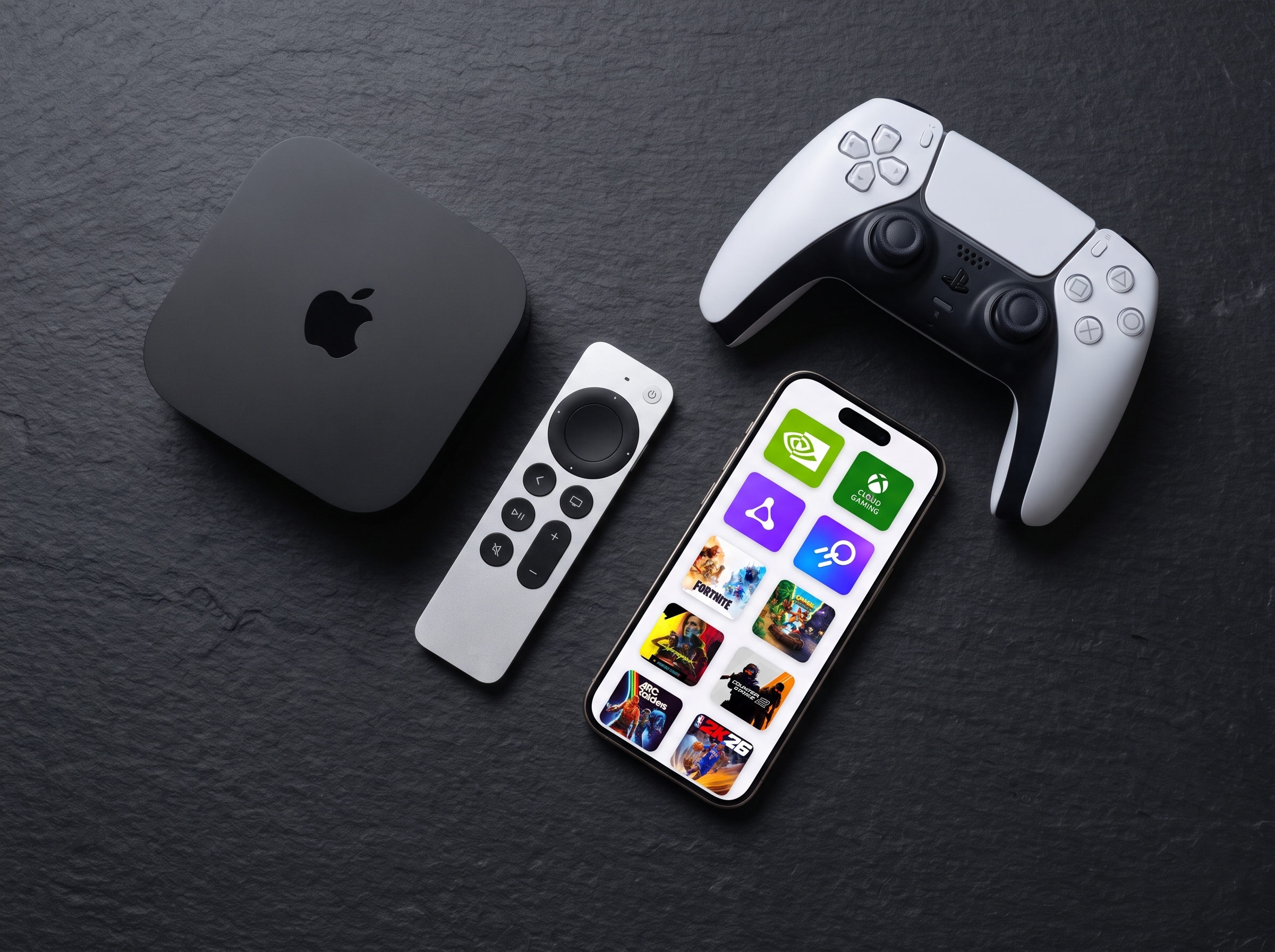
Turn your iPhone or iPad into a top-end gaming PC with CloudGear — the browser built for GeForce NOW, Xbox Cloud Gaming, Amazon Luna, and Boosteroid.
Free 7-day trial — see plans & pricing
Safari holds cloud gaming back, missing essential features like controller rumble, mouse pointer lock, HDR, and external display support. From the creators of OneCast — the trusted Xbox streaming app — CloudGear fixes all of it with a custom-built, low-latency rendering engine, delivering up to 5K, 120 FPS, and HDR on any screen.

Real reviews from the App Store and the press.
Cloud gaming on iOS has never been so good.
Enjoy fluid gameplay with support for up to 120 FPS and stunningly clear 5K video on supported platforms.
See games the way developers intended with high dynamic range. Deep blacks, bright highlights, and rich color gradients bring virtual worlds to life.
Full support for AV1 and H.265 ensures you get the crispest image quality at the most efficient bitrates.
Go beyond stereo with support for up to 7.1 channel surround sound and head-tracked spatial audio that puts you in the center of the action.
Specific feature availability like resolution, FPS, and HDR depends on the cloud gaming service and your subscription tier.
Because cloud gaming shouldn't feel like a downgrade.
Get the precision you need for competitive play. Your cursor is captured within the game for flawless, uninterrupted aiming, just like on a PC.
Feel every impact, explosion, and rumble through any connected gamepad. For controllers without built-in motors, CloudGear routes vibration through your iPhone's Taptic Engine instead.
Hide all distracting UI elements with a few taps. It's just you and the game.
Take full control of your view. Zoom, stretch, or manually position the video stream to eliminate black bars and use every inch of your display.
From the TV in your living room to AR glasses on your morning commute.
Connect your iPhone or iPad to any TV or monitor via a USB-C or Lightning to HDMI adapter and you're gaming on the big screen in seconds.
Pair with AR glasses like XREAL, VITURE, Rokid, or RayNeo that act as an external display for a massive private virtual screen. Game on a cinema-sized display that only you can see.
CloudGear outputs at the native resolution of your external display. Every pixel is used, with no letterboxing or scaling artifacts.
Cloud gaming does the heavy lifting. Your iPhone or iPad is the gateway. Pair it with any screen and you have a portable, high-performance gaming rig ready to go.
Less scrolling. More gaming.
Bookmark a specific game and launch it with one tap. Quick Launch bookmarks bypass the streaming service's user interface entirely, taking you straight into the game.
Add any bookmark to your iOS Home Screen as a widget. Tapping the widget launches the bookmark directly — no need to open CloudGear first.
Find and launch any bookmark right from iOS Spotlight search.
Bookmarks sync automatically across all your iPhones and iPads via iCloud.
CloudGear unlocks the full potential of popular cloud gaming platforms.
Experience Ultimate membership with up to 5K at 120 FPS, H.265 & AV1 codecs, HDR, 10-bit color, and 7.1 surround sound.
Stream at up to 4K at 120 FPS (including on mobile) with HDR support. Use Custom Resolution Selection to match your stream to any display for a pixel-perfect picture.
Better xCloud — the popular enhancement script for Xbox Cloud Gaming — is built right in. Install it from the CloudGear menu to unlock higher bitrate, improved input, and more.
Stream Luna at the maximum resolution and bitrate the service offers — even on iPhone. Full controller support and CloudGear's gaming-focused enhancements bring the Luna experience up to PC-class on mobile.
Actual streaming quality is determined by each service's capabilities and your subscription plan. CloudGear enables the maximum quality available to your account.
Here's what a cloud gaming browser unlocks that Safari can't.
CloudGear | Safari | |
|---|---|---|
| Visuals & Performance | ||
| Max Video Resolution (with GFN Ultimate) | 5120 x 2880 | 1600 x 1200 |
| Max Frame Rate (with GFN Ultimate) | 120 FPS | 60 FPS |
| Max Bitrate (with GFN Ultimate) | 100 Mbps | 75 Mbps |
| HDR | ||
| 10-Bit Color | ||
| Low Latency Rendering | ||
| Frame Pacing | ||
| Video Codecs | H.264, H.265, AV1 | H.264 |
| Controls & Input | ||
| Controller Vibration / Rumble | ||
| Mouse Pointer Lock | ||
| Keyboard Lock | ||
| Custom Mouse Sensitivity | ||
| Custom Rumble Sensitivity | ||
| Scroll Direction Inversion | ||
| Use Device Haptics For Rumble (iPhone Only) | ||
| Audio | ||
| 7.1 Surround Sound (with GFN Ultimate) | ||
| Background Audio Playback | ||
| Spatial Audio | ||
| System Integration | ||
| Immersive Fullscreen | ||
| Configurable Video Sizing | ||
| Clutter-Free Interface | ||
| Native Resolution External Display & AR Glasses | ||
| Quick Launch Bookmarks | ||
| Home Screen Widgets | ||
| Built-in "Better xCloud" Manager | ||
| Configurable Background Idle Timeout | ||
| Prevent Screen Dimming | ||
| Landscape Lock While Streaming (iPhone Only) | ||
Have a question, need support, or just want to talk games? Our community is the place to connect with fellow players, share your setup, and chat about all things cloud gaming.