· Guides
How to Play Grand Theft Auto V on iPhone & iPad in 2026 (Rumble & 4K Guide)
Learn how to play GTA V on iOS with controller rumble, up to 4K resolution, and 120 FPS using cloud gaming with Boosteroid.

Grand Theft Auto V (GTA V) is one of the most popular games in history, yet over a decade after its release, it is still not available on the Apple App Store. While you can play older titles like San Andreas natively, the full, console-quality Los Santos experience has remained out of reach for mobile gamers — until now.
The solution is Cloud Gaming, but unlike Fortnite or Call of Duty, GTA V is not on Xbox Cloud Gaming or GeForce NOW.
To play GTA V on iOS, you need to use a service called Boosteroid.
Before You Start: The 2 Things You’ll Need
Let’s be straight with you up front: there’s no single app that runs GTA V on an iPhone or iPad, and getting it running isn’t free. To stream Los Santos to your iOS device, you need two things:
- A copy of GTA V you own — on Steam, the Epic Games Store, or Rockstar Launcher. Cloud gaming streams your PC copy; it doesn’t give you the game. (Don’t own it yet? It goes on sale on Steam often.)
- A Boosteroid subscription (paid, monthly) — the cloud service that runs GTA V on a remote gaming PC and streams it to your screen. It’s the only major platform that supports GTA V; GeForce NOW and Xbox Cloud Gaming don’t.
A monthly subscription might sound like a lot on top of the game, but streaming is actually a bargain. The whole point of cloud gaming is that you never buy the hardware: Boosteroid runs GTA V on a high-end PC in its data center, so instead of buying a console or a gaming PC, you rent that horsepower by the month. A gaming PC that runs GTA V like this costs around US$2,000 up front and ages out in a few years — staying current means upgrading again. Boosteroid prices in euros worldwide: about €13 a month, or from €7.49 a month on an annual plan, on hardware that’s always current. You’d stream for well over a decade before it cost as much as that PC, and you’d never pay for an upgrade.
With the game and a Boosteroid subscription sorted, there are two ways to actually play on your iPhone or iPad: the free Safari method, and the “Pro” way with CloudGear that turns your device into a pocket gaming rig. We’ll start with Safari.
Want the best version now? CloudGear unlocks the full experience — rumble, full resolution, and proper fullscreen — on a free 7-day trial, so you can try it before you pay a cent.

Rated 4.8★ from 900+ App Store ratings
“Playing via Safari always felt like I was wasting my money since it capped the resolution and frame rate.” — ★★★★★ App Store review
Part 1: The “Standard” Way (Playable, But Lacks Immersion)
If you just want to load into Los Santos quickly and don’t mind missing out on some console features, you can play directly through the Safari browser. It works — but remember, you’re paying for a high-end gaming PC in the cloud, and Safari only lets a fraction of that power reach your screen.
The Limitations of Safari:
- No Rumble: Driving and shooting feel “flat” because Safari cannot communicate with your controller’s vibration motors.
- Low Resolution & FPS: Safari limits the stream quality, often locking you to lower resolutions and 60 FPS. You won’t get the sharpness or fluidity your device is actually capable of displaying.
- Screen Clutter: Safari does not support proper full screen, so the browser navigation bar and iOS status bar often remain visible during gameplay, shrinking your view and breaking immersion.
Step-by-Step Guide for Safari:
- Sign Up for Boosteroid: Create an account at Boosteroid.com. You will need an active subscription (GTA V is not free to stream).
- Own the Game: Ensure you own a copy of Grand Theft Auto V on Steam, Epic Games Store, or Rockstar Launcher.
- Launch via Safari: Open Safari on your iPhone/iPad and log in to Boosteroid.
- Add to Home Screen: Tap the Share Button and select “Add to Home Screen” to create a shortcut.
- Play: Launch the shortcut, search for GTA V, and sign in to your Steam/Epic account to start playing.

Part 2: The “Pro” Way (Console Experience on Mobile)
If you want your iPhone or iPad to feel like a portable PlayStation or Xbox, CloudGear is the answer. It’s a browser built specifically for cloud gaming, designed to unlock the full power you’re already paying for — everything Safari leaves on the table.
“The iPad finally becomes a gaming console with CloudGear.” — MacStories
Why use this method?
- Clutter-Free Interface: Unlike Safari, CloudGear provides an edge-to-edge view with a hidden navigation bar you can reveal with intuitive gestures. It removes all distractions so you can focus entirely on the game.
- Custom Resolution & 120 FPS: CloudGear lets you force any custom resolution to perfectly match your iPhone or iPad screen (maximizing every pixel) and supports streaming at up to 120 FPS for buttery-smooth gameplay.
- Controller Rumble: Feel every car crash, gunshot, and explosion. CloudGear enables native rumble for supported controllers (Xbox, PS5).
- Haptic Fallback: Using a mobile controller like a Backbone that lacks motors? CloudGear uses your iPhone’s built-in haptic engine to simulate controller vibration, so you still get tactile feedback.
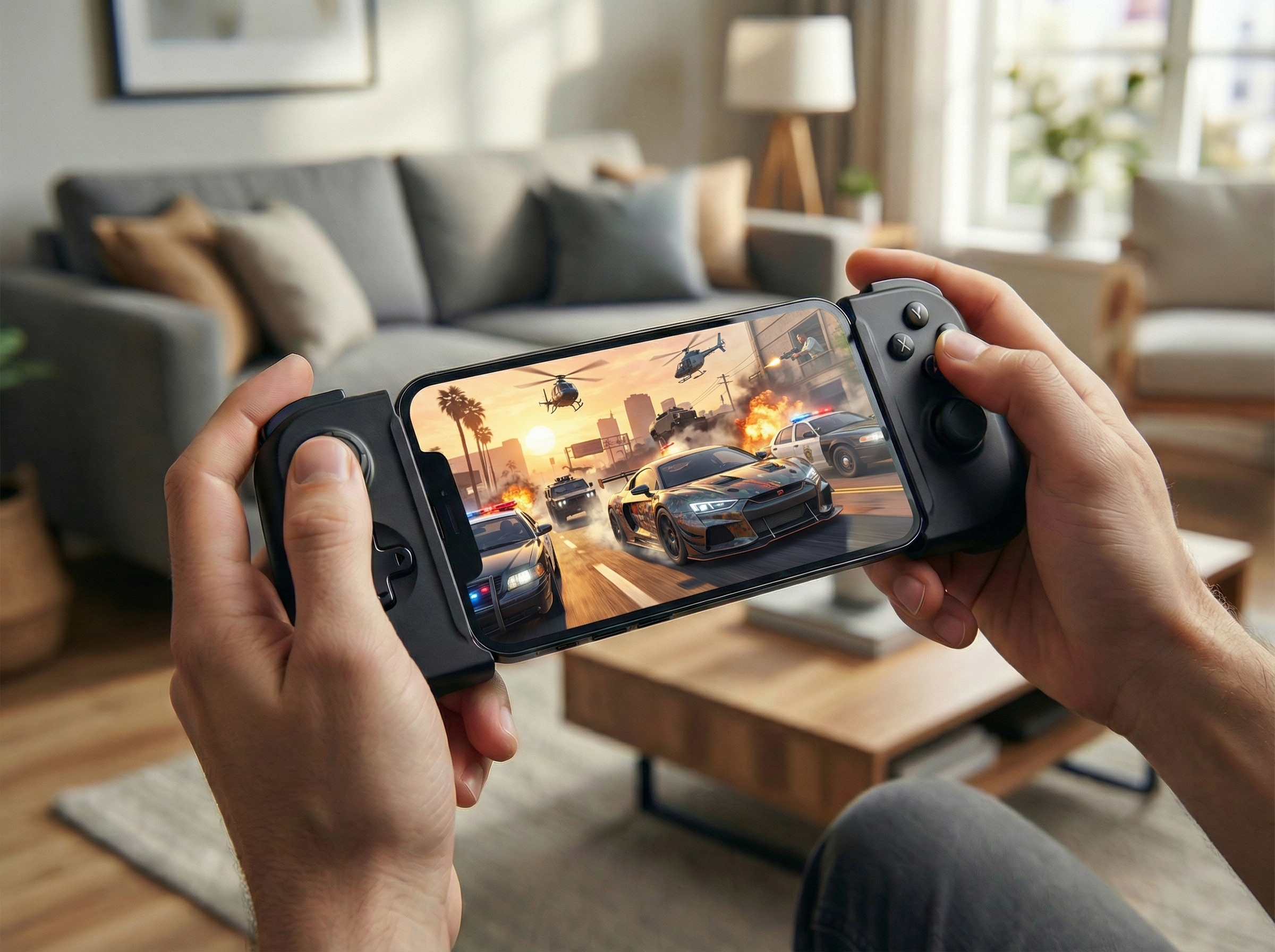
- External Monitor Support: Plug your device into a TV via HDMI, and CloudGear outputs a clean, full-screen signal (no black bars), effectively turning your phone into a console.
Step-by-Step Guide:
- Sign Up for Boosteroid: Create an account at Boosteroid.com — you’ll need an active subscription (GTA V isn’t free to stream).
- Own the Game: Make sure you own Grand Theft Auto V on Steam, Epic Games Store, or Rockstar Launcher.
- Download CloudGear: Get it from the App Store, open the Boosteroid tile, and log in.
- Launch GTA V: Search for Grand Theft Auto V and hit Install & Play — it boots straight into Immersive Full Screen with rumble enabled.

Pro Tip (Language Check): When the game launcher (e.g., Steam) opens inside the stream, check the language settings before you click Play on the game itself.
Open the Steam Preferences or Game Properties and ensure the language is set to English (or your preferred language). This prevents the game from accidentally launching in the wrong region’s language. 
How does CloudGear compare to Safari?
CloudGear | Safari | |
|---|---|---|
| Visuals & Performance | ||
| Max Video Resolution (with GFN Ultimate) | 5120 x 2880 | 1600 x 1200 |
| Max Frame Rate (with GFN Ultimate) | 120 FPS | 60 FPS |
| Max Bitrate (with GFN Ultimate) | 100 Mbps | 75 Mbps |
| HDR | ||
| 10-Bit Color | ||
| Low Latency Rendering | ||
| Frame Pacing | ||
| Video Codecs | H.264, H.265, AV1 | H.264 |
| Controls & Input | ||
| Controller Vibration / Rumble | ||
| Mouse Pointer Lock | ||
| Keyboard Lock | ||
| Custom Mouse Sensitivity | ||
| Custom Rumble Sensitivity | ||
| Scroll Direction Inversion | ||
| Use Device Haptics For Rumble (iPhone Only) | ||
| Valve Steam Controller Support | ||
| Virtual Mouse (Touch Gestures) | ||
| Controller Button Remapping | ||
| Thumbstick Anti-deadzone | ||
| Audio | ||
| 7.1 Surround Sound (with GFN Ultimate) | ||
| Background Audio Playback | ||
| Spatial Audio | ||
| System Integration | ||
| Immersive Fullscreen | ||
| Configurable Video Sizing | ||
| Clutter-Free Interface | ||
| Native Resolution External Display & AR Glasses | ||
| Quick Launch Bookmarks | ||
| Home Screen Widgets | ||
| Built-in "Better xCloud" Manager | ||
| Configurable Background Idle Timeout | ||
| Prevent Screen Dimming | ||
| Landscape Lock While Streaming (iPhone Only) | ||
| Play on Apple TV | ||
| Live Performance Overlay | ||
| Auto Resolution Matching | ||
That’s the full CloudGear setup. Try it free for 7 days:
Part 3: Optimizing Your GTA V Setup
Since GTA V is a fast-paced open-world game, your setup can make a huge difference in performance.
1. Connection is Key
- 5GHz WiFi: Essential for low latency. Avoid 2.4GHz networks as they will cause stuttering while driving fast.
- Ethernet: If playing on an iPad, a USB-C Ethernet adapter provides the smoothest, lag-free experience.
2. Controller Settings
- Rumble: Ensure vibration is enabled in the GTA V in-game settings menu (Settings > Gamepad > Vibration: On). CloudGear will handle the rest.
- Recommended Controllers:
- iPhone: Backbone One (with CloudGear’s Haptic Fallback) or GameSir G8 Plus.
- iPad: Xbox Series X/S or DualSense controller (for native strong rumble).

3. The “Console” Mode
Did you know your iPhone or iPad can output video to a TV?
- Plug a USB-C or Lightning to HDMI adapter into your device.
- Connect it to your TV.
- Open CloudGear and launch GTA V.
- The app will output a full-screen signal to your TV, effectively turning your phone into a console.

Conclusion
Cloud gaming put a high-end gaming rig in your pocket — no $2,000 PC, no upgrades, just a reasonable monthly subscription. The only question is how much of that power actually reaches your screen.
Through Safari, most of it doesn’t: no rumble, capped resolution, and a cluttered, partial screen view. CloudGear unlocks the rest — real controller rumble, edge-to-edge visuals at full resolution, and full-screen output to your TV — so your iPhone or iPad finally plays GTA V like the powerful machine streaming it.
“I just turned my iPhone into a Steam Deck… CloudGear cost a fraction of any gaming console and I need one expensive device less.” — ★★★★★ App Store review
Ready to play GTA V the way it’s meant to be? Start your free 7-day trial.