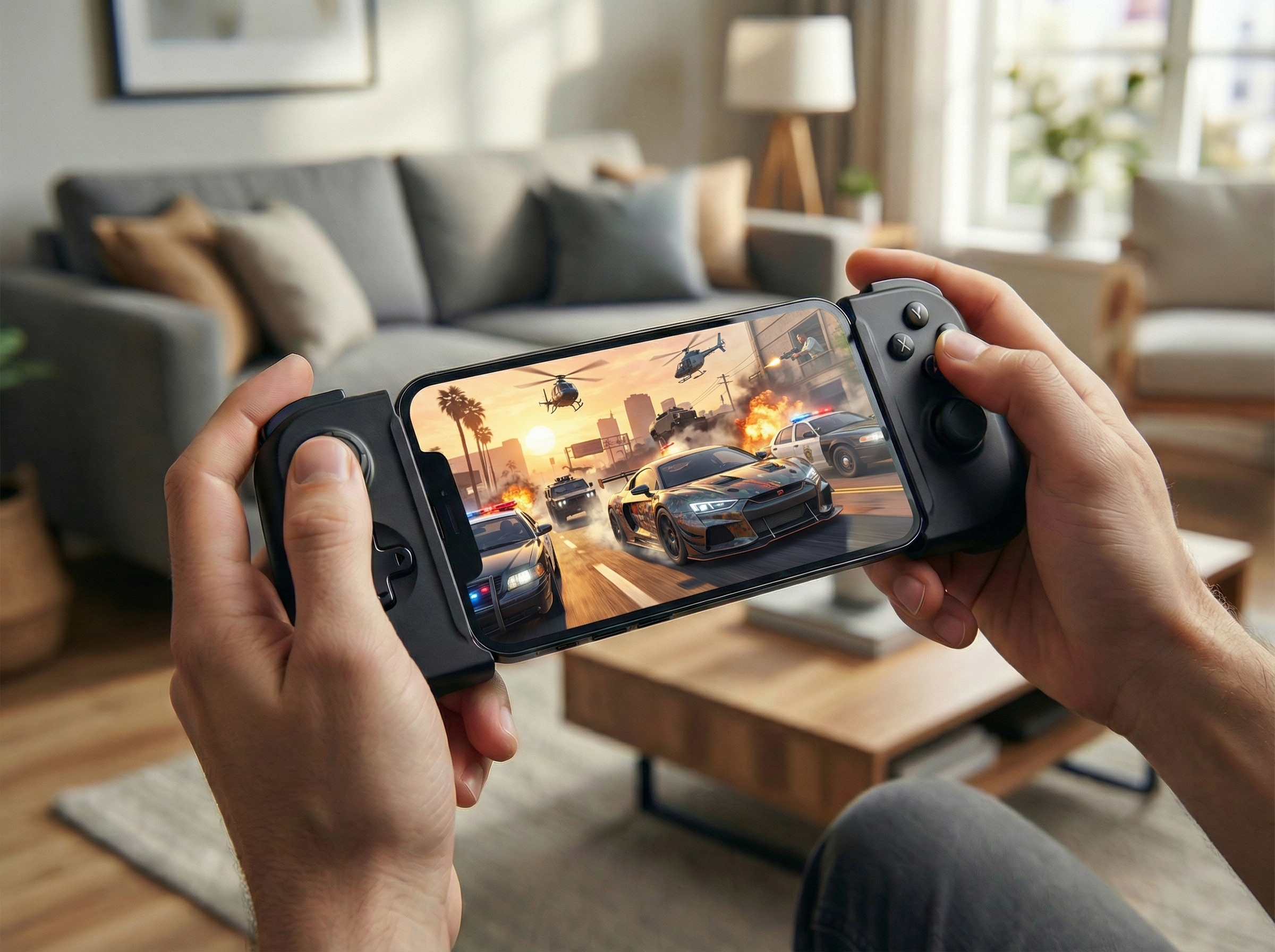
· Guides
How to Play Cloud Games on Apple TV (GeForce NOW, Xbox Cloud Gaming, Luna & Boosteroid)
Apple TV has no web browser, and the big cloud gaming services have never shipped an app for it. Here's how to play all four on your Apple TV in up to 4K with HDR10.
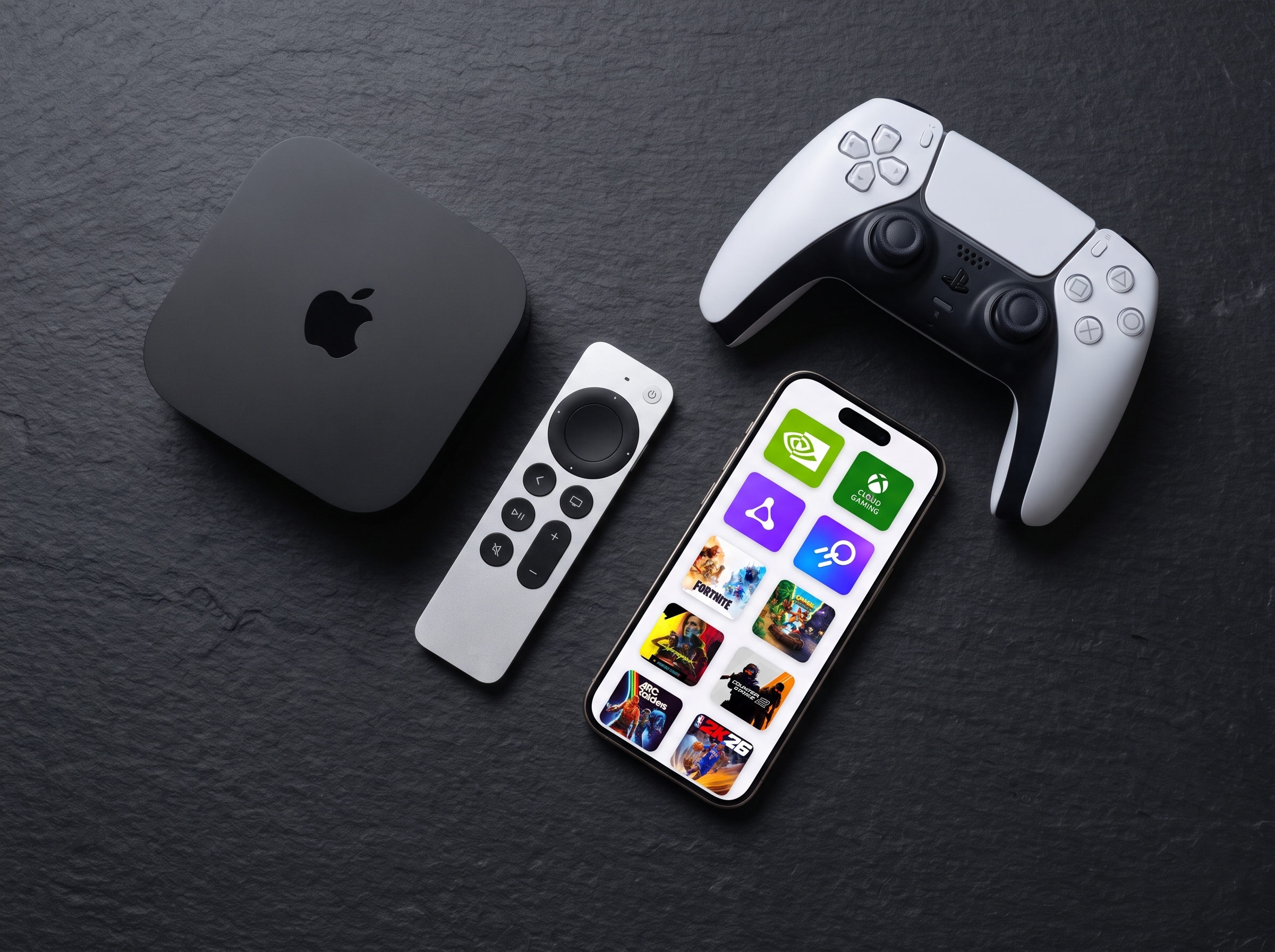
Your Apple TV is almost certainly the best screen in your house for gaming. It sits under a big display, it is already connected to your sound system, and tvOS supports PlayStation, Xbox, and MFi controllers out of the box.
And yet cloud gaming has largely passed it by.
Why cloud gaming has been so awkward on Apple TV
Two things stand in the way.
Apple TV has no web browser. On an iPhone, iPad, Mac, or PC, you can simply open a cloud gaming service in a browser tab and play. tvOS ships no browser at all, so that entire route is closed. If a service wants to reach Apple TV, it has to build and ship a native app.
The major services have not built one. Apple changed its App Store rules in early 2024 to explicitly permit game streaming apps. More than two years later:
- NVIDIA has no GeForce NOW app for Apple TV. Its recent platform pushes have gone to Linux and Amazon Fire TV instead.
- Microsoft has no Xbox Cloud Gaming app for Apple TV, despite shipping one for Fire TV and for LG and Samsung smart TVs.
- Amazon Luna ships on Fire TV and LG TVs, but not tvOS.
- Boosteroid ships on LG, Samsung, and Android TV, but not tvOS.
There have been partial answers. Bitwise Solutions, the team behind CloudGear, has offered Xbox streaming on Apple TV for years through OneCast. A handful of community-built clients cover GeForce NOW with varying success, though most require sideloading or building the app yourself in Xcode.
What has not existed is a single app that covers all of the major services on Apple TV. That is what CloudGear v2.0 adds.
What CloudGear for Apple TV does
CloudGear for Apple TV is the first app to bring GeForce NOW, Xbox Cloud Gaming, Amazon Luna, and Boosteroid to Apple TV together.
It works as a companion to the CloudGear app on your iPhone or iPad, which is what makes it possible without a browser on the TV. The split is simple:
- Your iPhone or iPad handles everything that needs a web view: signing in to the service, browsing the catalogue, and starting the game.
- Your Apple TV does the playing: decoding and rendering the stream with CloudGear’s low-latency engine, and taking input from your controller.
Both devices need to be on the same network. Pairing is a one-time six-digit code shown on the TV and typed into your phone.
Importantly, this is not AirPlay screen mirroring. With AirPlay, your phone renders the game and re-broadcasts its screen, which costs you latency and image quality. Here the Apple TV receives and renders the stream itself.
Two ways to play
Hand-Off
This is the default and the one you will use most. The game moves onto your Apple TV and runs there, for the lowest possible latency. Once it has handed off, your iPhone is no longer doing any work, so you can lock it, put it down, or walk out of the room with it.
Play with a game controller, the Siri Remote, or a Steam Controller.
Tethered
Here your iPhone or iPad stays connected, and a physical keyboard and mouse plugged into it pass straight through to the game on the TV.
This matters more than it sounds, because an Apple TV cannot connect to a mouse at all. tvOS simply has no support for one. So if you want to play with a mouse on the big screen, routing it through your iPhone or iPad in Tethered mode is the only way to do it: the mouse plugs into the iOS device, and CloudGear passes its movement and clicks along to the game running on the TV.
That makes this the mode for strategy games, MMORPGs, and anything else built around a cursor. The trade-off is that your iOS device needs to stay nearby, unlocked, and with CloudGear open.
Picture and sound
On Apple TV, CloudGear streams at up to 4K, with HDR10 and 10-bit colour, and up to 7.1 channel surround sound driven to your receiver or soundbar rather than downmixed to stereo.
What matters for HDR is simply that your Apple TV is set to output HDR. If you have an HDR TV, it almost certainly already is, in which case HDR games play in HDR straight away and SDR content is tone-mapped by tvOS. You can check under Settings > Video and Audio > Format.
If your Apple TV is on an SDR format instead, either switch it to an HDR one, or turn on Match Content > Match Dynamic Range so the display can switch into HDR when a game calls for it.
What each service does on Apple TV
| Service | On Apple TV |
|---|---|
| GeForce NOW | Up to 4K, HDR, 10-bit colour, 7.1 surround sound |
| Boosteroid | Up to 4K, HDR |
| Xbox Cloud Gaming | Up to 1440p |
| Amazon Luna | Up to 1080p |
Actual streaming quality depends on each service’s capabilities and your account tier. CloudGear enables the maximum quality available to your account. You still need your own subscription with whichever service you use.
If you want the higher ceiling, note that on iPhone and iPad CloudGear goes further still, up to 5K and 120 FPS. The Apple TV ceiling is 4K.
Controls
- Game controllers. Any PlayStation, Xbox, or MFi controller works, with full rumble. Pair it to the Apple TV itself in Settings > Remotes and Devices > Bluetooth, not to your iPhone. This is the second thing that catches people out.
- Valve Steam Controller. Fully supported, including using the right trackpad as a mouse. Its Keyboard & Mouse mode lets you remap every button, stick, and trackpad to any key or mouse action, which makes keyboard-and-mouse-only games playable with just a controller.
- Siri Remote. The touchpad drives an on-screen mouse pointer, which is enough to click through a launcher or a game menu without reaching for anything else.
- On-screen keyboard. Type logins, passwords, and chat straight into the game.
- Keyboard and mouse. Connect them to your iPhone or iPad and use Tethered mode.
What you need
- An iPhone or iPad running CloudGear, and an Apple TV, on the same Wi-Fi network.
- tvOS 18.6 or later. For 4K and HDR output you need an Apple TV 4K.
- A subscription with at least one cloud gaming service.
- One CloudGear unlock. CloudGear is a Universal Purchase, so a subscription or the one-off lifetime unlock covers your iPhone, iPad, and Apple TV together. The Apple TV app has no purchase of its own.
A wired Ethernet connection to the Apple TV is worth it if you have the option. Cloud gaming is far more sensitive to jitter than video streaming is, and Wi-Fi congestion shows up as stutter long before it shows up as a lower bitrate.
Getting started
- Install CloudGear on your iPhone or iPad from the App Store and sign in to your cloud gaming service inside it.
- Open the App Store on your Apple TV and install CloudGear there. It is part of the same purchase.
- Open CloudGear on the Apple TV and enter the six-digit code it shows into CloudGear on your iPhone or iPad.
- Start a game from your iPhone or iPad. It opens on the TV.
- Lock your phone and play.