· Guides
What Is Cloud Gaming? Play PC & Console Games on Your iPhone or iPad
Cloud gaming streams full PC and console games straight to your iPhone or iPad — no $500 console or $1,500 gaming PC required. Here's how it works, what it costs, and how to start.
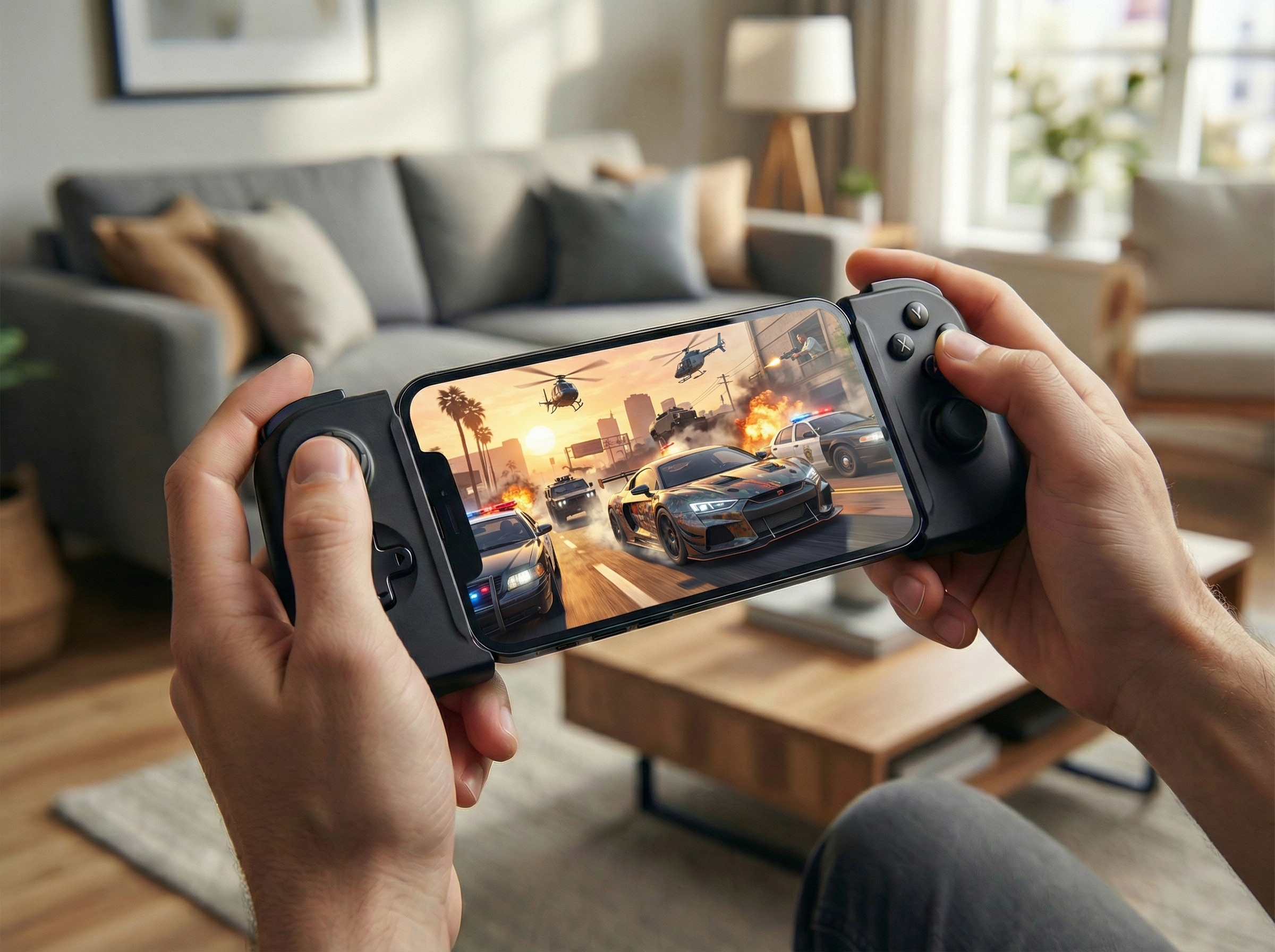
A gaming PC costs $1,500 to $2,500 or more. A Steam Deck runs $789 to $949. Even a Nintendo Switch OLED is $399. But there’s a powerful gaming machine you already own and carry everywhere: your iPhone or iPad. With cloud gaming, it can play the same blockbuster PC and console games — no new hardware required.
If you’ve heard the term “cloud gaming” but weren’t sure what it means or whether it’s worth it, this guide explains exactly how it works, what it costs, and how to start playing on iOS.
What Is Cloud Gaming?
Cloud gaming lets you play full PC and console games that run on powerful computers in a data center and stream to your device as video — think Netflix, but for games. Instead of downloading and installing a game, you press play and the game starts almost instantly. The server does all the heavy lifting; your iPhone or iPad just displays the video and sends your inputs back.
That’s the key idea: the game never actually runs on your device. So hardware that could never run a demanding AAA title on its own — a phone, a tablet, an old laptop — can stream it at high quality, because the real work happens in the cloud.
How Cloud Gaming Works
When you start a game, four things happen in a fraction of a second, on a loop:
- A high-end server in a data center runs the game.
- It encodes each frame as compressed video and streams it to your device.
- Your iPhone or iPad decodes and displays that video.
- Your controller, keyboard, or touch input is sent back to the server.
This round trip happens dozens of times per second, which is why a fast, stable connection matters more than a powerful device. For most services, 15–25 Mbps is plenty, ideally over 5GHz Wi-Fi or a wired Ethernet connection for the lowest latency.
You might expect all that streaming back and forth to feel laggy — but modern internet infrastructure keeps it remarkably tight. Cloud servers are spread across the globe, so when you’re near a data center the extra latency added by streaming can be as low as 5 ms — low enough that most players can’t tell a cloud game apart from one running locally. A nearby server plus a wired or 5GHz Wi-Fi connection is the recipe for responsive, lag-free play.
To get started you need three things:
- An iPhone or iPad (any reasonably recent model works).
- An account with a cloud gaming service — more on these below.
- A stable internet connection.
A Bluetooth or USB-C controller is recommended for most games but isn’t strictly required.
Why Cloud Gaming Is a Game-Changer on iPhone & iPad
The big advantage is cost. Playing AAA games has traditionally meant buying dedicated hardware. Cloud gaming flips that: you use a device you already own and pay a small subscription instead.
| To play AAA games, you could buy… | Up-front cost |
|---|---|
| A gaming PC | $1,500 – $2,500+ |
| A Steam Deck OLED | $789 – $949 |
| A Nintendo Switch OLED | $399 |
| The iPhone or iPad you already own + cloud gaming | $0 in new hardware |
The streaming subscription itself runs just a few dollars a month, and if you want to play on the big screen, a USB-C or Lightning to HDMI cable or adapter costs anywhere from $15 to $80. In other words, if you already own an iPhone or iPad, you’re potentially $700 to $2,000+ ahead of buying a separate gaming device.

There are practical wins too: no multi-gigabyte downloads, no game updates to wait on, no storage filling up, and your save data lives in the cloud. You can start a game on your iPad at home and pick it up on your iPhone on the train. As MacStories put it, “the iPad finally becomes a gaming console.”
The Cloud Gaming Services You Can Use
Cloud gaming isn’t a single product — it’s a category, with several services to choose from. The main ones available on iOS are:
- GeForce NOW — NVIDIA’s service streams the PC games you already own from stores like Steam and the Epic Games Store. It’s the only major service with a free tier (with shorter sessions), making it the easiest way to try cloud gaming at no cost — and its paid Ultimate tier reaches up to 5K resolution, 120 FPS, HDR, and 7.1 surround sound.
- Xbox Cloud Gaming — included with Xbox Game Pass (cloud streaming now works on any paid Game Pass tier, not only Ultimate), it streams a large library of console and PC games. Fortnite is the one title you can stream free with just a Microsoft account; everything else needs a paid Game Pass plan.
- Amazon Luna — a subscription service with its own channels of games, streaming at the maximum resolution and bitrate it offers, even on iPhone.
- Boosteroid — an independent service with a growing PC-game library, streaming at up to 4K and 120 FPS with HDR.
Each requires its own account, and which one is right for you depends mostly on which games you want to play. Many offer a free trial or free tier, so you can test your connection before committing.
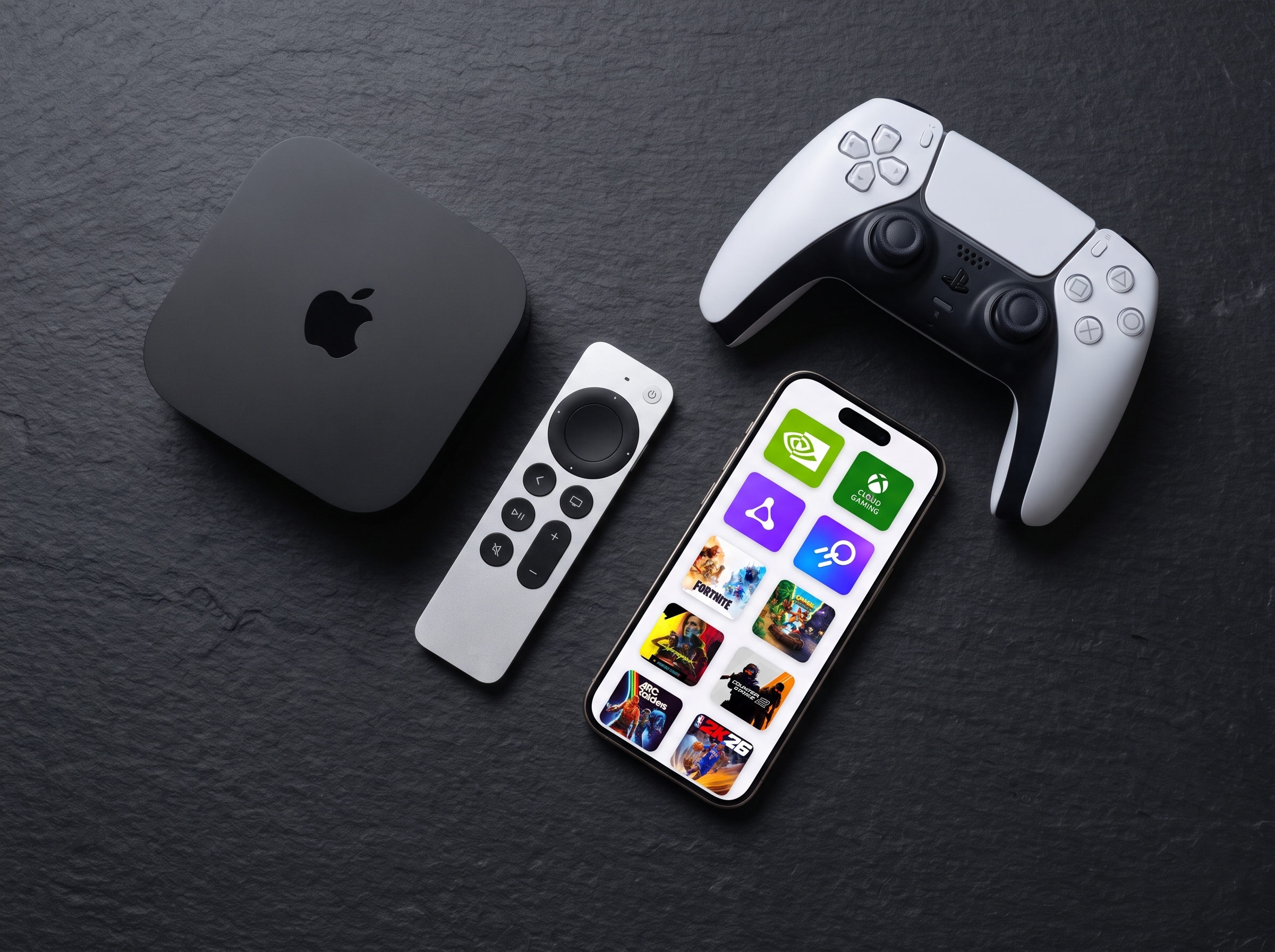
Worth knowing: none of these four ship an app for Apple TV, and tvOS has no web browser to fall back on, which is why cloud gaming has largely skipped Apple’s set-top box. CloudGear’s companion app for Apple TV is the way around that, and we cover it in detail in our guide to cloud gaming on Apple TV.
The Catch: Safari Holds Cloud Gaming Back on iOS
Here’s what most people don’t realise. On a PC, cloud gaming feels great in Chrome or Edge. On an iPhone or iPad, every service runs through Safari’s browser engine — and Safari was never designed for gaming.

The result is a stripped-down experience that makes a great service feel mediocre:
- No controller rumble — your gamepad sits lifeless.
- No mouse pointer lock — mouse-driven games are essentially unplayable.
- No HDR or 10-bit color — you get a flat SDR image.
- Capped frame rates and older codecs — a softer picture and lower performance than the service can actually deliver.
- No true fullscreen, and black bars on external displays — the browser’s chrome and scaling get in the way.
Because the cause isn’t obvious, most people blame the service for the poor experience — when the real bottleneck is the browser.
CloudGear fixes all of it. It’s a cloud gaming browser, designed for gamers, that replaces Safari as the way to access GeForce NOW, Xbox Cloud Gaming, Amazon Luna, and Boosteroid on iOS. Using a custom low-latency rendering engine and deep hardware integration, it restores controller rumble, true mouse pointer lock, HDR and 10-bit color, H.265 and AV1 codecs, higher frame rates, 7.1 surround sound, immersive fullscreen, and native-resolution output to TVs, monitors, and AR glasses like XREAL, VITURE, Rokid, or RayNeo — over USB-C or HDMI (Lightning to HDMI is also supported). It isn’t a streaming service itself; it’s the client that unlocks the full potential of the services you already use.
If you want the detail on a specific service, see our deep dives on GeForce NOW on iOS and Boosteroid on iOS, the full mouse and keyboard setup guide, and how to turn your iPhone or iPad into a portable gaming console on the big screen.
How to Start Cloud Gaming on Your iPhone or iPad
Getting set up takes just a few minutes:
Choose a cloud gaming service that carries the games you want — GeForce NOW, Xbox Cloud Gaming, Amazon Luna, or Boosteroid. Try a free tier or trial first if one is available.
Download CloudGear from the App Store on your iPhone or iPad.
Open CloudGear and select your service from the home screen, then sign in with your existing account.
Connect a controller (optional). Pair a Bluetooth or USB-C controller via iOS Settings > Bluetooth. CloudGear enables rumble and mouse pointer lock automatically.
Launch a game and play — on your device’s screen, or connected to a TV, monitor, or AR glasses for a big-screen, console-style setup.
The Bottom Line
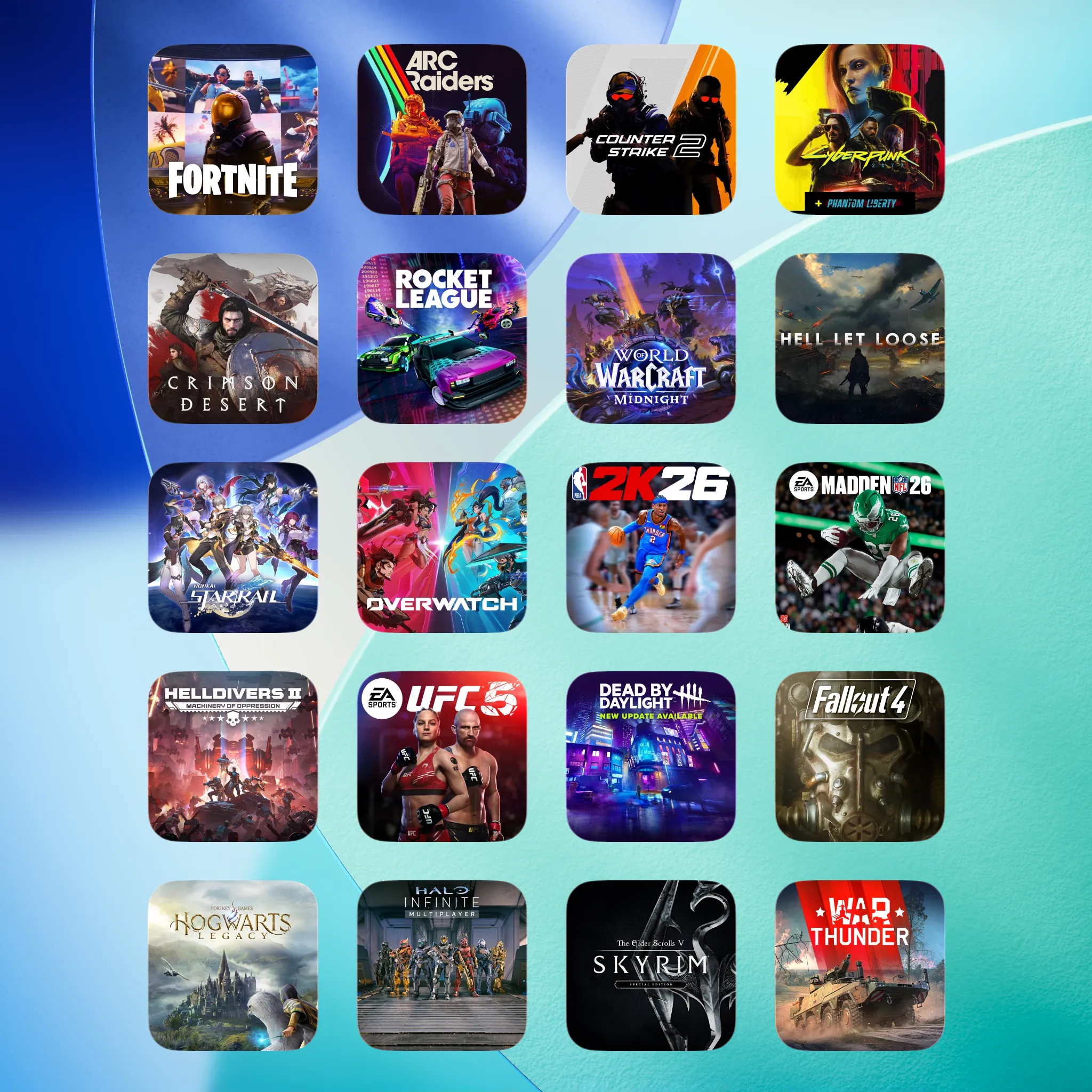
Cloud gaming turns the iPhone or iPad you already own into a machine that can play full PC and console games — without spending hundreds on new hardware. The technology is here, the libraries are large, and the only thing holding it back on iOS is Safari.
CloudGear removes that limit, giving you the full, desktop-class experience on any screen. See pricing and plans, or get started now:

Rated 4.8★ from 800+ App Store ratings