· Guides
How to Get Controller Rumble on iOS Cloud Gaming (GeForce Now, Xbox Cloud Gaming, Boosteroid)
Safari strips controller vibration from cloud gaming streams. Learn how to restore full rumble support on iPhone and iPad with CloudGear.

Cloud gaming on iOS has come a long way. Services like GeForce Now, Xbox Cloud Gaming, and Boosteroid let you play AAA titles directly from Safari on your iPhone or iPad. But if you’ve tried it, you might have noticed something feels off.
Where’s the rumble?
When you fire a weapon, take damage, or drive over rough terrain, your controller just… sits there. Silent. The vibration feedback that makes games feel alive is completely absent.
This isn’t a bug. It’s a limitation of Safari itself.
Why Safari Doesn’t Support Controller Rumble
Safari on iOS lacks support for the Gamepad Haptics API, the web standard that allows browsers to send vibration commands to connected controllers. When cloud gaming services stream gameplay to your device, Safari simply ignores any rumble data in that stream.
The result? A noticeably less immersive experience. Games feel flat without that physical feedback telling you what’s happening on screen.
The Solution: CloudGear
CloudGear is a specialized browser built specifically for cloud gaming on iOS. Unlike Safari, it fully supports controller rumble across all major cloud gaming services.
But rumble is just the beginning. CloudGear also enables:
- Up to 4K resolution at high frame rates
- HDR support for vivid colors and contrast
- Surround sound audio for spatial awareness
- External display support to play on your TV
- True mouse pointer lock for PC-style aiming
Getting Rumble on Your Controller
CloudGear supports rumble in two ways: through your controller’s built-in vibration motors, or through your iPhone’s Taptic Engine for controllers that don’t have motors.
Controllers with Built-in Rumble Motors
If you’re using a standalone Bluetooth controller with vibration motors, CloudGear will drive them directly. Here are our recommended options:
- Xbox Bluetooth Controller - The standard Xbox wireless controller works perfectly when connected via Bluetooth.
- PlayStation DualShock 4 / DualSense Controller - Both the PS4 and PS5 controllers provide excellent rumble feedback when connected via Bluetooth.
- GameSir G8+ Bluetooth Controller - A great third-party option with solid rumble motors. Make sure you get the Bluetooth variant, not the MFi version—the MFi model does not support rumble on iOS.

Taptic Engine Fallback for Form-Fitting Controllers
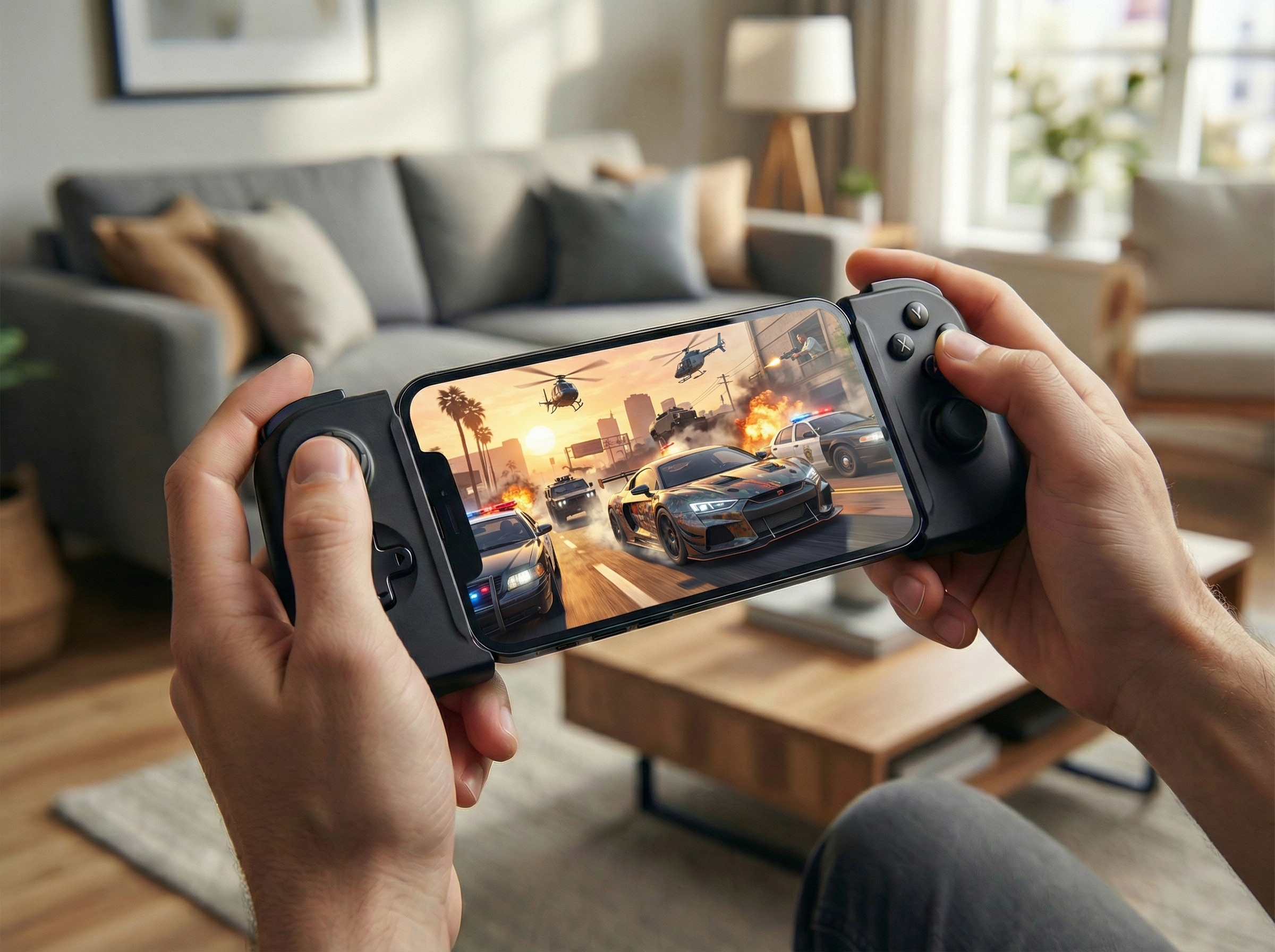
Controllers like the Backbone One or Razer Kishi that clip directly onto your iPhone don’t have rumble motors built in. Does that mean you’re out of luck?
Not with CloudGear.
When you’re using a controller without built-in motors, CloudGear automatically falls back to your iPhone’s Taptic Engine. This uses your phone’s internal haptic motor to simulate vibration feedback. You’ll feel the rumble through the phone itself while it’s cradled in the controller.
It’s not quite the same as dedicated rumble motors, but it’s far better than nothing—and it works automatically with no configuration required.
Steam Controller
CloudGear has first-class support for the Valve Steam Controller on iPhone, iPad, and Apple TV. It connects automatically over Bluetooth and drives both its rumble motors and its trackpad haptics, so you get the faint textured feedback under your thumb as well as conventional vibration.
Beyond Rumble: Anti-deadzone
Rumble is one half of how a controller feels. The other is how the sticks respond, and there is a problem specific to iOS and tvOS that is worth knowing about.
Games normally ignore a small area around the centre of each thumbstick, called a deadzone, so a slightly worn stick doesn’t drift on its own. The trouble is that iOS applies a deadzone of its own before the game ever sees the input, so the two stack. The result is a stick that feels sluggish and imprecise as you begin to move it, which is most noticeable when making small aiming corrections.
CloudGear’s Anti-deadzone setting cancels that out. It radially re-expands the stick output across the zone the remote game is ignoring, so small movements register the way they would on a PC or console. You’ll find it in Settings under Controls.
Quick Setup Guide
Getting rumble working is straightforward:
- Download CloudGear from the App Store.
- Open the app and select your preferred cloud gaming service (GeForce NOW, Xbox Cloud Gaming, Amazon Luna, or Boosteroid).
- Connect your Bluetooth controller via iOS Settings > Bluetooth.
- Start playing. Rumble works automatically—no additional setup needed.
That’s it. CloudGear detects your controller and enables rumble support the moment you start a game.
Conclusion
Safari is fine for checking your cloud gaming library or quick sessions, but its lack of rumble support makes extended play feel hollow.
Rumble is just one piece of the puzzle. CloudGear unlocks the full potential of cloud gaming on iOS—up to 4K resolution, high frame rates, HDR, surround sound audio, and external display support to play on your TV. Whether you’re using a standalone Bluetooth controller or a form-fitting mobile controller with Taptic Engine fallback, you’ll finally get the immersive experience cloud gaming was meant to deliver.