· Guides
Boosteroid on iOS Without Limits: 4K, 120 FPS, HDR, and More on iPhone & iPad
Boosteroid auto-selects your resolution and Safari caps frame rate at 60 FPS. Here's how to unlock the full experience — including HDR no other client offers.

Boosteroid delivers up to 4K resolution, 120 FPS, and a growing library of PC games you can stream from any device. But open it on your iPhone or iPad in Safari, and the experience takes a hit: no control over resolution, 60 FPS max, no rumble, no mouse lock, and no fullscreen.
Here’s what’s holding you back, and how CloudGear fixes all of it — plus adds HDR that Boosteroid doesn’t offer anywhere else.
What Safari Takes Away
Safari is a fine general-purpose browser, but it was never designed for cloud gaming. When you use Boosteroid through Safari on iOS, you hit a wall of limitations that prevent the service from delivering its full potential.
Visuals & Performance
- No resolution control — Boosteroid auto-selects a resolution based on your display size on desktop and mobile, with no way to change it (TV clients do allow manual selection). CloudGear brings that same configurability to iPhone and iPad.
- Frame rate limited to 60 FPS — Boosteroid supports up to 120 FPS, but in Safari the stream tops out at 60 — even on ProMotion displays.
- No 10-bit color — Without 10-bit support, color gradients show visible banding instead of smooth transitions.
- H.264 only — In Safari, Boosteroid streams using H.264 only. The newer AV1 codec that delivers better image quality at lower bandwidth is unavailable.
- No frame pacing — Network jitter causes frames to arrive unevenly, creating visible stutter even on a fast connection. Safari has no mechanism to smooth this out.
Controls & Input
- No controller rumble — Safari lacks the Gamepad Haptics API. Your controller sits silent no matter what happens in-game.
- No mouse pointer lock — Games that need a mouse (FPS titles, MMOs, strategy games) are essentially unplayable because Safari can’t lock the cursor to the game window.
Experience
- No true fullscreen — Safari’s address bar, status bar, and other chrome intrude on the game view.
- No native external display output — Connecting to a TV or monitor through Safari results in mirroring with black bars and scaling issues, not a native full-screen signal.
That’s a long list of missing features — and they add up to a significantly compromised experience compared to what Boosteroid can actually deliver.
CloudGear: The Full Boosteroid Experience on iOS
CloudGear is a browser designed for gamers. It uses a custom low-latency rendering engine and deep hardware integration to deliver every feature that Safari leaves on the table — and then goes further, adding HDR support that no other Boosteroid client offers, not even on desktop. It’s not a streaming service — it’s the client that unlocks the full potential of Boosteroid on your iPhone or iPad.
Safari vs. CloudGear: Feature Comparison
| Feature | Safari | CloudGear |
|---|---|---|
| Resolution | Display-locked, no control | Up to 4K, configurable |
| Max Frame Rate | 60 FPS | 120 FPS |
| HDR | No | Yes (CloudGear exclusive!)* |
| 10-Bit Color | No | Yes* |
| Video Codecs | H.264 | H.264, AV1* |
| Low Latency Rendering | No | Yes |
| Frame Pacing | No | Yes |
| Controller Vibration / Rumble | No | Yes |
| Mouse Pointer Lock | No | Yes |
| Custom Mouse Sensitivity | No | Yes |
| Custom Rumble Intensity | No | Yes |
| Device Haptics Fallback | No | Yes |
| Spatial Audio | No | Yes |
| Background Audio Playback | No | Yes |
| Immersive Fullscreen | No | Yes |
| Configurable Video Sizing | No | Yes |
| Native Resolution External Display | No | Yes |
*HDR and 10-bit color require the AV1 codec, which is only available on devices with hardware AV1 decoding (iPhone 15 Pro, M3 iPad and newer). Specific feature availability like resolution and FPS depends on your subscription tier.
Deep Dive: What Changes with CloudGear
Resolution & Frame Rate
Boosteroid automatically selects a streaming resolution based on your display size on desktop and mobile, with no way to change it (TV clients do allow manual selection). CloudGear brings that same control to iPhone and iPad. You can configure the stream resolution up to 3840 x 2160 (4K), selecting the exact quality level that suits your display and network conditions.
On a 12.9” iPad Pro or connected to a 4K TV, the ability to request a full 4K stream makes a visible difference. Text is crisp, distant objects are sharp, and the overall image quality matches what you’d see on a desktop setup.
Frame rate matters just as much. On devices with ProMotion displays (120Hz), CloudGear unlocks up to 120 FPS and allows you to set the frame rate in Boosteroid’s own settings. The jump from 60 to 120 FPS is transformative — camera movements are smoother, input feels more responsive, and fast-paced games like shooters and racing titles gain a tangible competitive edge.
CloudGear also includes frame pacing, which buffers one extra frame to absorb network jitter — the small fluctuations in frame delivery time that cause visible stutter even on a fast connection. This adds a tiny amount of latency (16.6 ms at 60 FPS, or 8.3 ms at 120 FPS) in exchange for noticeably smoother playback.
HDR & 10-Bit Color — A CloudGear Exclusive
This is something no other Boosteroid client offers — not even the desktop app. Boosteroid doesn’t officially support HDR on any platform. CloudGear changes that.
HDR brings brighter highlights, deeper blacks, and a wider color gamut. In games that support it, sunlight looks more natural, explosions pop, and dark environments reveal detail that gets crushed in SDR. If you want HDR from a Boosteroid stream, CloudGear is currently the only way to get it, on any device.
CloudGear also enables 10-bit color output. Ten-bit color means 1.07 billion colors instead of the 16.7 million you get with 8-bit — practically, this eliminates the color banding you see in gradients like sunsets and fog effects.
Both HDR and 10-bit color require the AV1 codec, so you’ll need a device with hardware AV1 decoding: iPhone 15 Pro, M3 iPad and newer.
AV1 Codec
Safari decodes Boosteroid streams using H.264, a codec from 2003. It works, but it requires more bandwidth to achieve the same image quality as modern codecs.
CloudGear supports AV1, which delivers noticeably better image quality at the same bitrate — or the same quality at lower bandwidth. This is especially valuable on mobile connections or congested WiFi networks. If you’ve ever noticed blocky artifacts or muddy textures during fast action, switching to AV1 can make a significant difference.
AV1 requires hardware decoding support (iPhone 15 Pro, M3 iPad and newer), and CloudGear uses it automatically on those devices. It’s also a prerequisite for HDR and 10-bit color with Boosteroid.
Controller Rumble
A game without rumble is a game without feel. Explosions, engine vibrations, footsteps, weapon recoil — all of it disappears in Safari because the browser lacks the Gamepad Haptics API.
CloudGear restores full rumble support for Xbox, PlayStation, and other controllers with built-in motors. For form-fitting mobile controllers like the Backbone One that lack motors, CloudGear uses your iPhone’s Taptic Engine to simulate vibration.
For a deep dive into compatible controllers and how the Taptic Engine fallback works, see our controller rumble guide.
Mouse & Keyboard
Mouse pointer lock is what lets a game capture your cursor so you can look around, aim, and interact without the mouse escaping the game window. Safari doesn’t support it, which makes mouse-driven games essentially unplayable.
CloudGear enables full mouse pointer lock. This means games that require a mouse — MMOs, FPS titles, strategy games, and anything with a PC-native interface — are fully playable on iPhone and iPad. Boosteroid streams PC versions of games, so any title with native mouse and keyboard support works exactly as it would on a desktop.
For the complete setup walkthrough, see our dedicated mouse and keyboard cloud gaming guide.
If you don’t have a mouse with you, CloudGear’s Touchscreen mode is the fallback. Open the three-dot menu > Boosteroid settings > Touchscreen mode and choose Click and drag to turn touch gestures into mouse input: tap to left-click, drag one finger to move with the left button held, hold one finger still to right-click, and swipe with two fingers to scroll. Mouse-driven games stay playable with nothing but the screen. Touchscreen mode is supported on Boosteroid and GeForce NOW.
Fullscreen & External Display
Safari’s address bar and iOS status bar eat into your screen real estate. CloudGear provides a true immersive fullscreen mode — just the game, edge to edge. The browser interface is hidden and accessible via intuitive gestures when you need it.
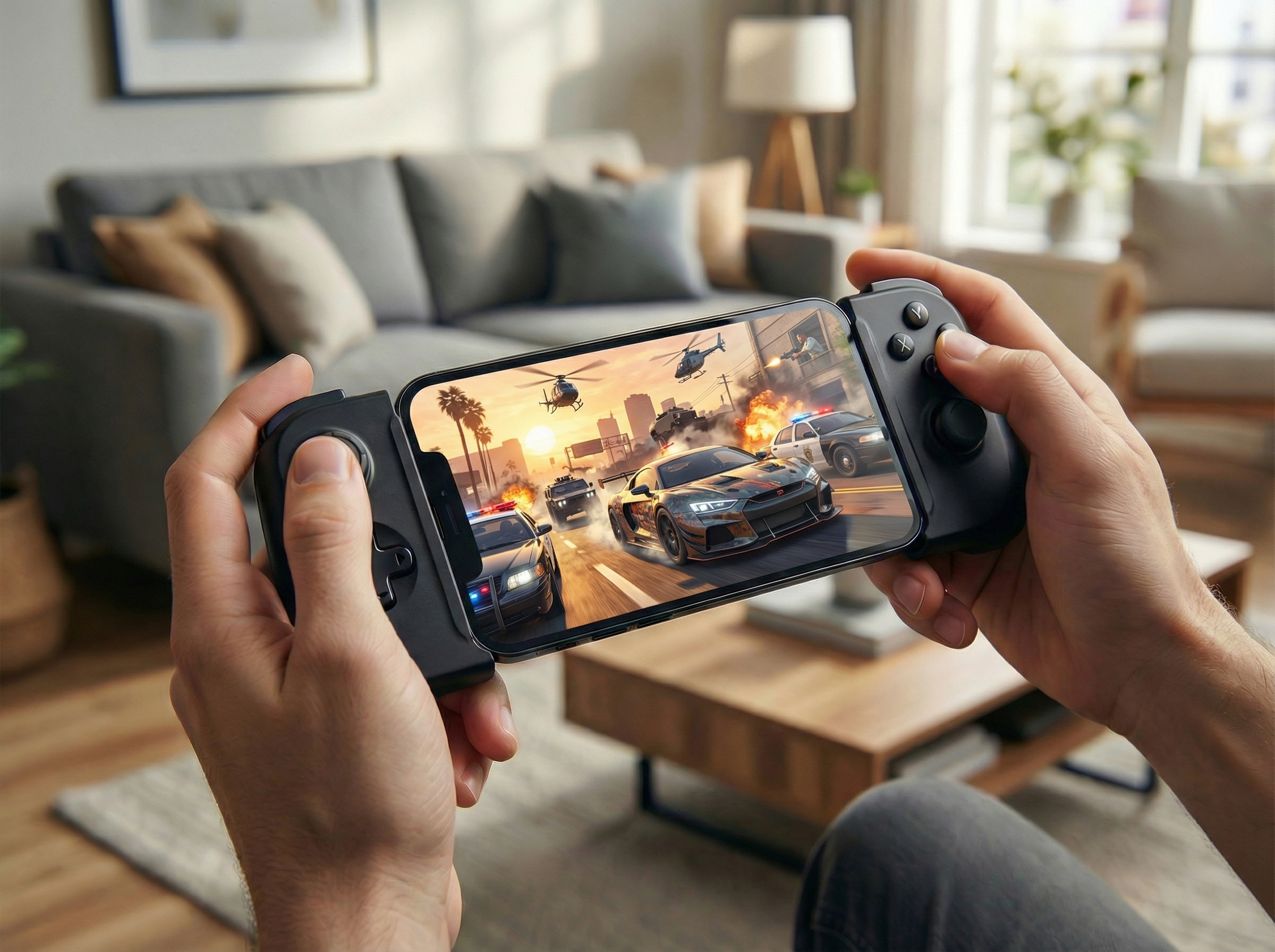
Connect your iPhone or iPad to a TV, monitor, or AR glasses like XREAL, VITURE, Rokid, or RayNeo via USB-C or HDMI (Lightning to HDMI is also supported), and CloudGear outputs a native-resolution full-screen signal — no black bars, no scaling artifacts. Your iOS device becomes a full gaming console. The device screen dims automatically to save battery while the game plays on the big screen.
For the complete setup guide with adapter recommendations and tips, see our portable gaming console guide.
Boosteroid on Apple TV
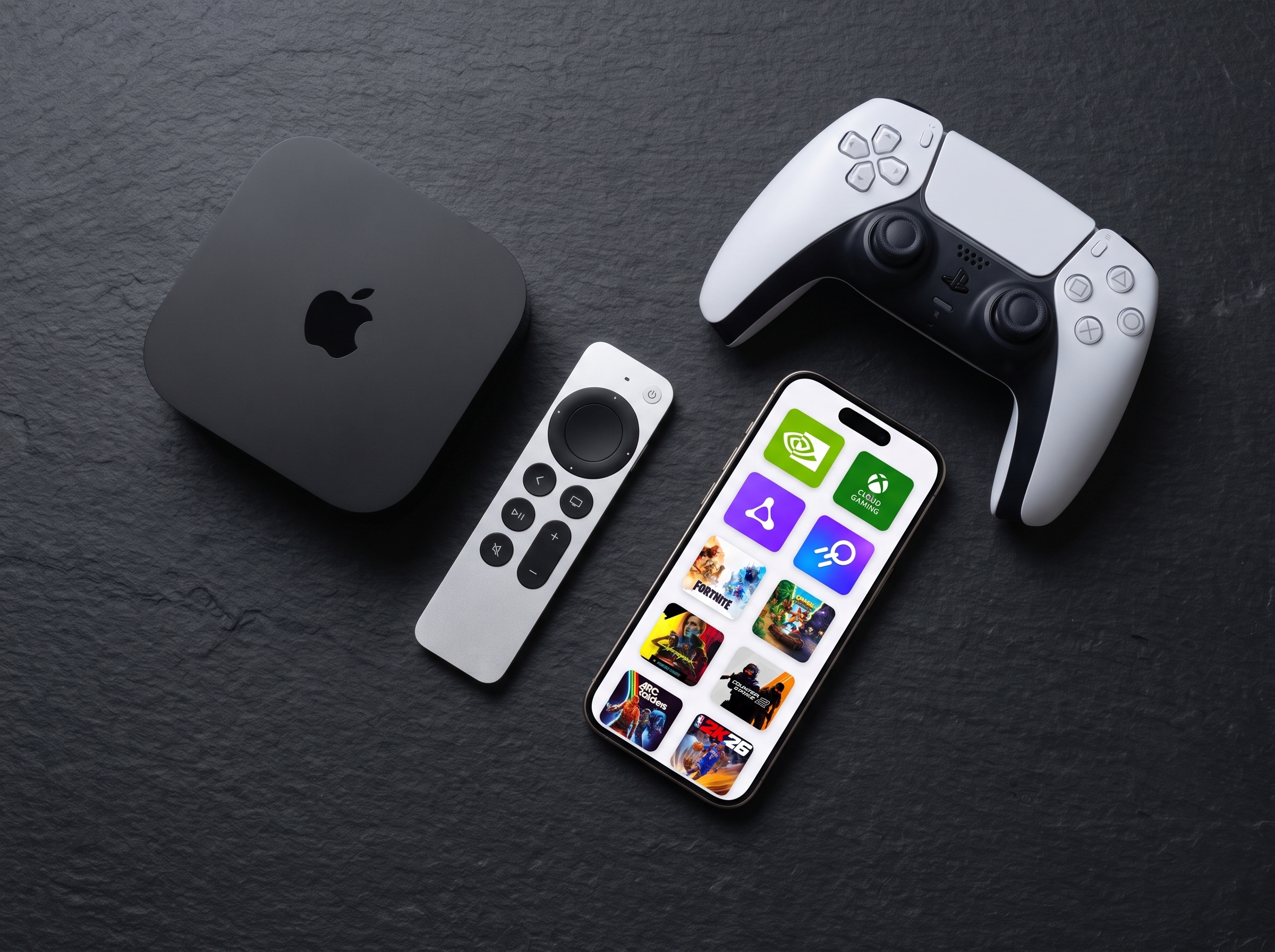
Boosteroid ships apps for LG, Samsung, and Android TV, but not for Apple TV, and tvOS has no browser. CloudGear’s Apple TV companion app covers it: launch from your iPhone or iPad and play on the Apple TV at up to 4K with HDR. See our guide to cloud gaming on Apple TV.
Setup Guide
Getting started takes less than five minutes:
Download CloudGear from the App Store on your iPhone or iPad.
Open the app and select Boosteroid from the CloudGear home screen.
Log in to your Boosteroid account. Any subscription tier works.
Set your stream resolution. Open CloudGear’s three-dot menu, tap Boosteroid settings, then Stream resolution. Choose a preset, such as 3840 x 2160 (4K), 2560 x 1440 (QHD) or 2560 x 1080 (ultrawide), or set a custom resolution. The default Auto mode matches your display, including an external display or a paired Apple TV.
Turn on HDR (optional). In the same Boosteroid settings sheet, switch on the HDR (experimental) toggle. It’s only available on devices with AV1 hardware decoding (iPhone 15 Pro, M3 iPad and newer).
Set frame rate in Boosteroid. Inside the Boosteroid web app, go to its settings and set the frame rate to 120 FPS if your device has a ProMotion display.
Connect your peripherals. Pair a Bluetooth controller, mouse, or keyboard via iOS Settings > Bluetooth. CloudGear enables rumble and pointer lock automatically. On iPhone, a mouse also needs AssistiveTouch turned on (see how to use a mouse on iPhone).
Launch a game from your Boosteroid library and play with the full experience.
Note: Boosteroid does not have a way to explicitly end a streaming session. If you change settings like resolution or HDR while a game is running, launch any other game first to terminate the current session, then relaunch the original game — the new settings will be applied.
Optimization Tips
- Use 5GHz WiFi or Ethernet. 2.4GHz WiFi introduces latency and packet loss. For the lowest latency, use a USB-C hub with an Ethernet port for a wired connection.
- Match your stream resolution to your display. In Auto mode, Boosteroid selects the highest resolution matching your display’s aspect ratio — this works well in most cases and is recommended for both iPhone and iPad. When using an external display, consider forcing 4K (3840 x 2160) for the sharpest image.
- Pick the right controller. Xbox Series X/S and PS5 DualSense controllers both support native rumble. For iPhone with a form-fitting controller, CloudGear’s Taptic Engine fallback provides haptic feedback.
- AV1 is on by default. On devices with hardware AV1 decoding (iPhone 15 Pro, M3 iPad and newer), CloudGear uses AV1 automatically, which reduces artifacts on a congested connection or mobile data without increasing bandwidth. The Settings > Advanced > Enable AV1 decoding toggle is only there to turn it off for troubleshooting.
- Restart sessions after changing settings. Boosteroid doesn’t have a way to explicitly end a streaming session. If you change resolution, HDR, or other settings mid-game, launch any other game to terminate the current session, then relaunch the original — the new settings will take effect.
- Use passthrough charging. Long sessions drain your battery. A USB-C hub with passthrough charging keeps your device powered while connected to an external display.
- Also use GeForce NOW? Check out our GeForce NOW guide for service-specific tips — CloudGear unlocks even more on GFN Ultimate, including 5K resolution and 7.1 surround sound.
Unlock the Full Boosteroid Experience
Safari is holding Boosteroid back on iOS. Frame rate is capped, controller rumble is silent, and mouse-driven games are unplayable. Even outside Safari, no Boosteroid client gives you control over resolution or HDR — until now.
CloudGear gives it all back. One app, every feature, on any screen.