How to Use a Mouse on iPhone
A mouse works on iPhone once AssistiveTouch is enabled — but iOS can't hide the system cursor. Here's the full setup and the best ways around the double cursor.

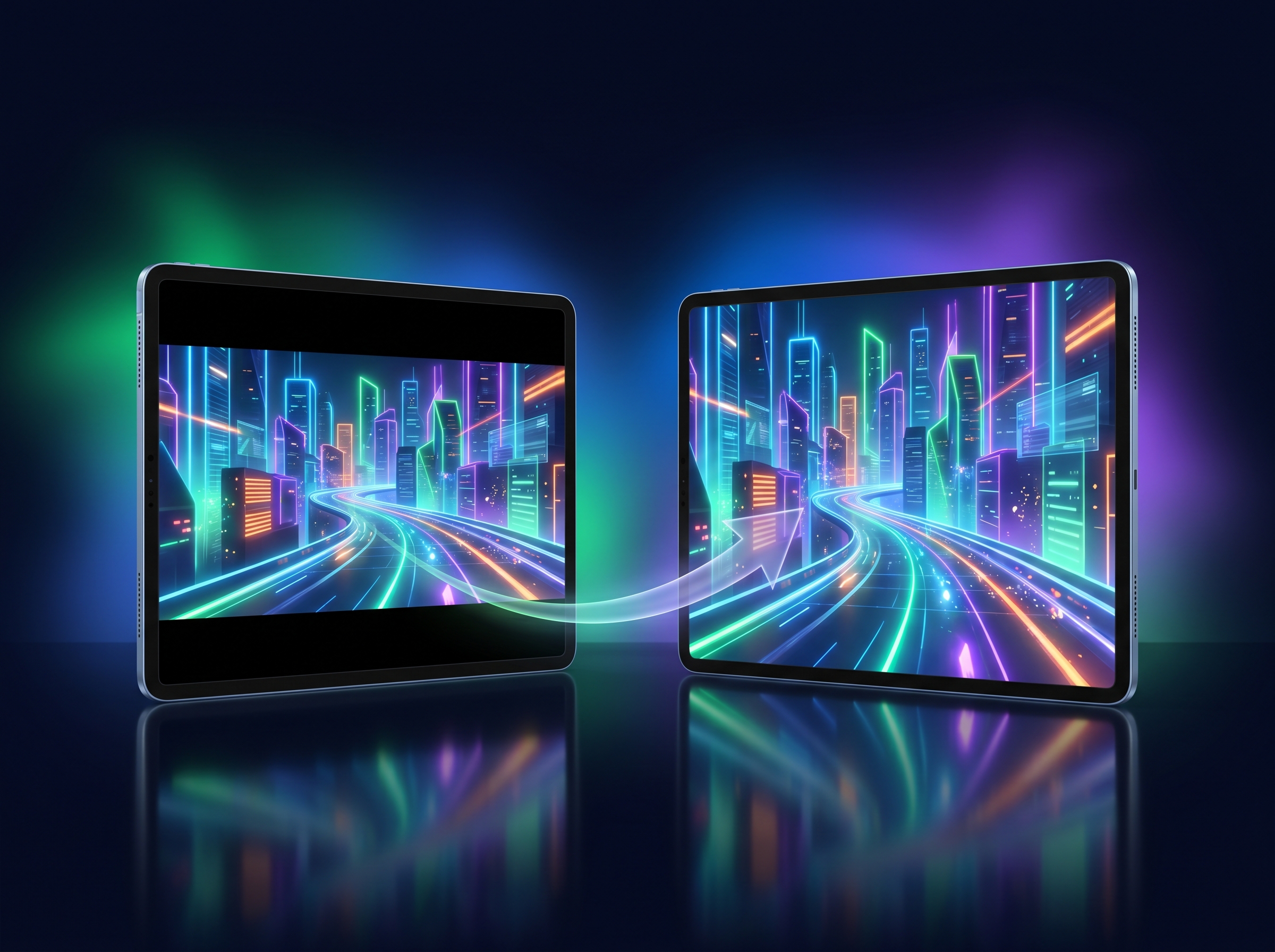
On iPad, a mouse just works in CloudGear — connect it, and you get true mouse pointer lock with the system cursor hidden, exactly like a PC. On iPhone, two iOS quirks get in the way. Neither is a CloudGear limitation; both come from how iOS itself handles a mouse on a phone. The good news is that both are easy to work around, and this guide covers each one.
Step 1: Enable AssistiveTouch (required)
On iPhone, a connected mouse does nothing inside an app until you turn on AssistiveTouch. Connect a mouse without it and the pointer simply won’t appear — it looks like the mouse isn’t working at all.
To enable it:
- Open Settings > Accessibility > Touch > AssistiveTouch
- Turn AssistiveTouch on
- Turn Perform Touch Gestures off
That’s it — the pointer will now work in CloudGear.
Why these two settings? iPhone won’t hand pointer input to apps unless AssistiveTouch is enabled — it’s the system feature that exposes a mouse to the rest of iOS. The second toggle, Perform Touch Gestures, makes the pointer behave like a simulated finger, tapping and swiping as you move it. That’s not what you want for gaming, so turning it off gives you proper mouse behaviour instead of touch emulation.
Step 2: The system cursor can’t be hidden
The second quirk is a hard iOS restriction: iPhone does not let apps hide the system cursor. When you’re in a game that draws its own cursor or aiming reticle, you’ll see two cursors at once — the iPhone system pointer floating on top of the in-game one. On iPad, CloudGear can hide the system cursor and lock the mouse cleanly; on iPhone, iOS keeps that pointer on the phone’s screen.
This doesn’t stop the mouse from working — aiming and camera control still function — but the extra cursor on screen is distracting. Here’s how to get rid of it.
The Fix: External Display or iPad
There are two clean ways to avoid the double cursor on iPhone:
- Connect to an external display. Plug your iPhone into a TV or monitor via USB-C or HDMI (Lightning to HDMI is also supported). The system cursor stays on the iPhone’s own screen, while the external display shows only the game and its in-game cursor — a clean, full-screen picture with no stray pointer. This pairs perfectly with CloudGear’s native-resolution external output, turning your iPhone into a console-style setup.
- Use an iPad instead. If you have one, an iPad sidesteps the issue entirely. CloudGear hides the system cursor and applies true mouse pointer lock on iPad, so mouse-driven games play exactly as they would on a PC.
Or Skip the Mouse Entirely: Virtual Mouse
If the double cursor is the problem, one option is to not connect a mouse at all. CloudGear’s Virtual Mouse drives a pointer using touch gestures alone, so there is no system cursor to worry about:
- Tap for a left click
- Drag with one finger to move with the left button held
- Long press for a right click
- Double-tap and hold, then drag to move with the right button held
- Swipe with two fingers to scroll
Turn it on from the in-game menu. It applies on the next page load, so CloudGear will prompt you to reload. Virtual Mouse is available on GeForce NOW and Boosteroid, and it can also be driven from the touchpad of a DualSense or DualShock controller.
More on Mouse & Keyboard Gaming
The steps above are iPhone-specific. For the bigger picture — why Safari can’t do mouse-driven cloud gaming on iOS at all, how pointer lock works, adjusting mouse sensitivity, and setting up a keyboard — see our full guide: How to Use Mouse & Keyboard for Cloud Gaming on iPhone & iPad.