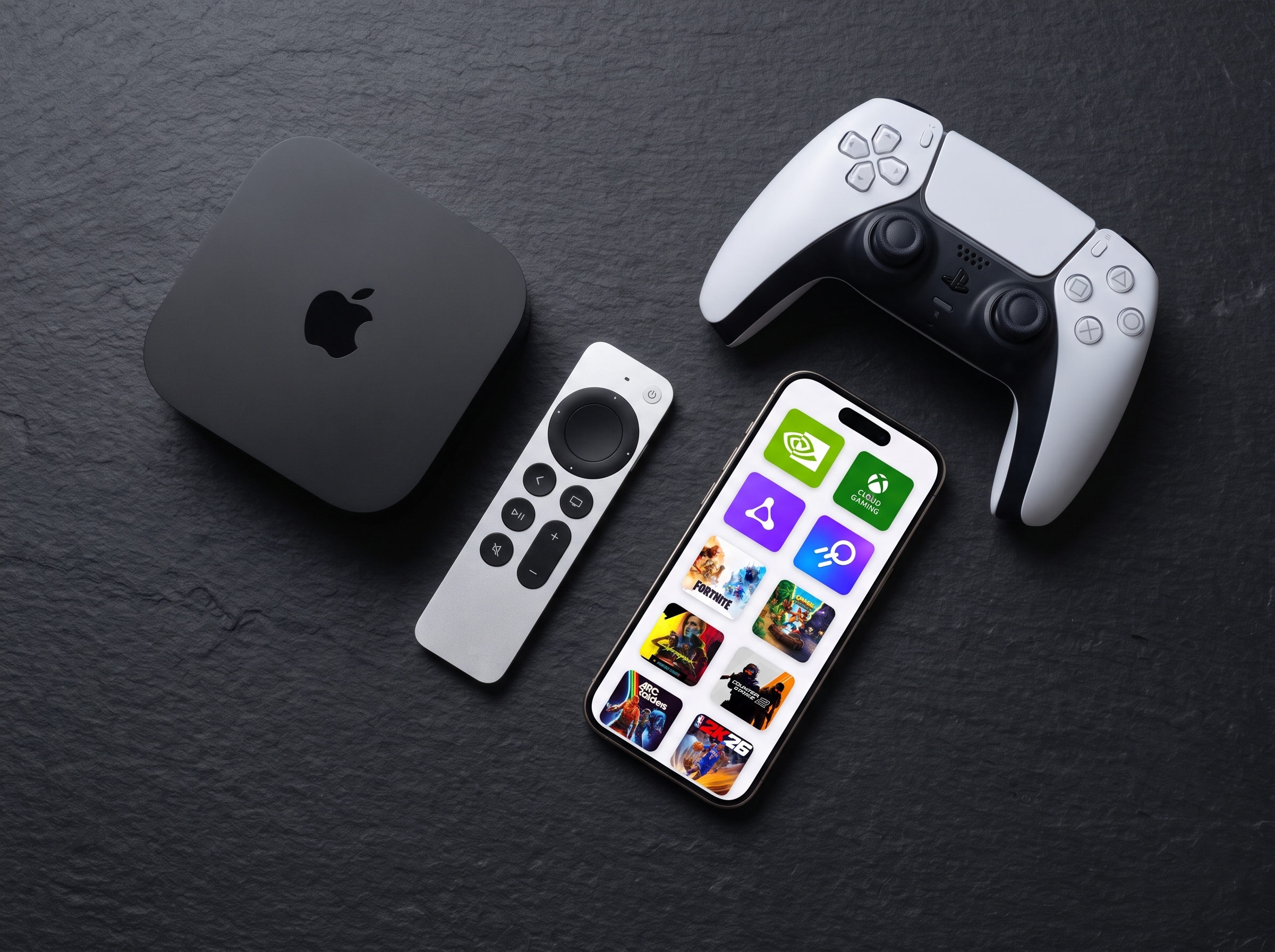
Bookmark Games and Add Them to Your Home Screen
Use Quick Launch bookmarks to jump straight into a specific game on any cloud gaming service, then turn those bookmarks into one-tap widgets on your iOS Home Screen.
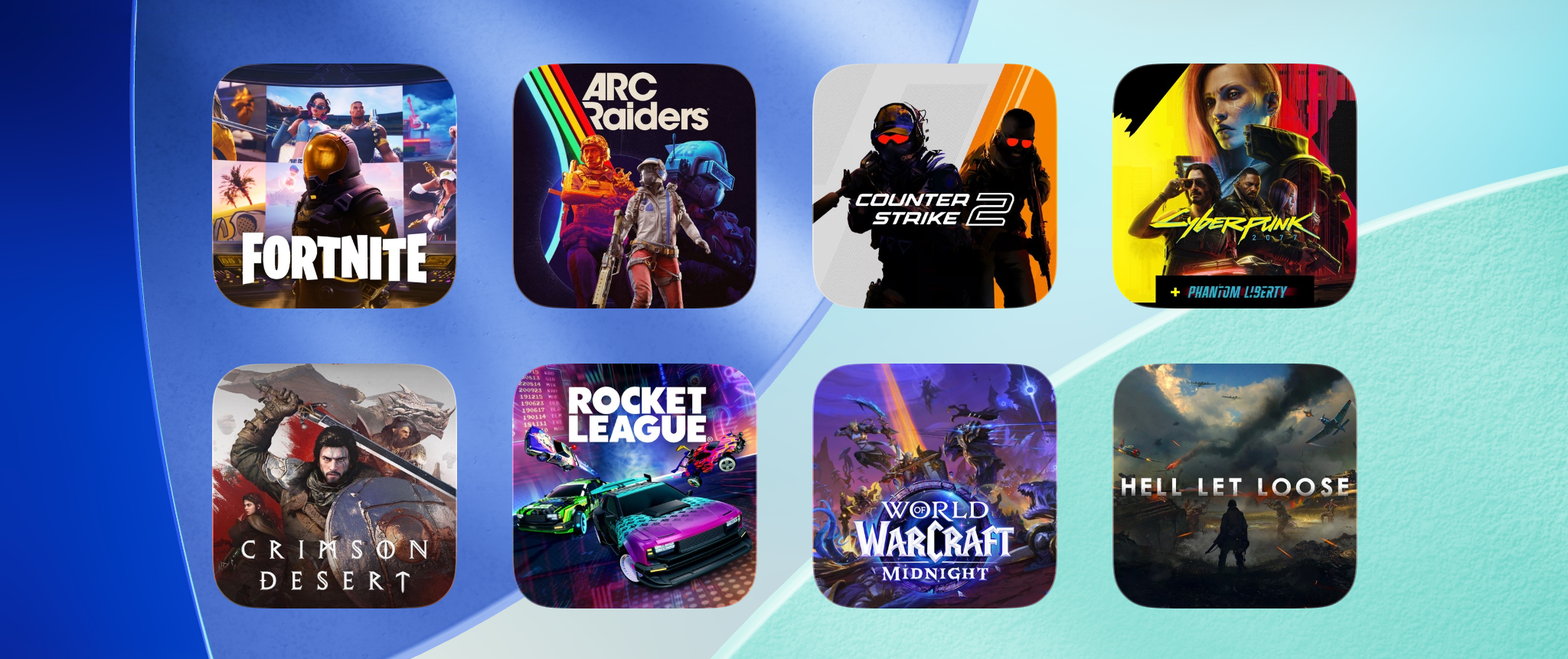
CloudGear’s Quick Launch bookmarks are game-specific shortcuts that take you straight into the game from your bookmark grid, bypassing the streaming service’s user interface entirely. Pair them with the Home Screen Widgets and you can launch any game from outside CloudGear too — one tap on your iOS Home Screen is all it takes.
This tutorial walks through both: how to bookmark a specific game on GeForce NOW, Xbox Cloud Gaming, Amazon Luna, and Boosteroid, and how to add any bookmark to your iOS Home Screen as a widget.
Creating a Quick Launch Bookmark
Unlike a regular bookmark — which opens a service’s home page — a Quick Launch bookmark drops you directly onto a specific game. The flow is the same on every supported service:
- Open the streaming service in CloudGear and browse to the detail page for the game you want to bookmark.
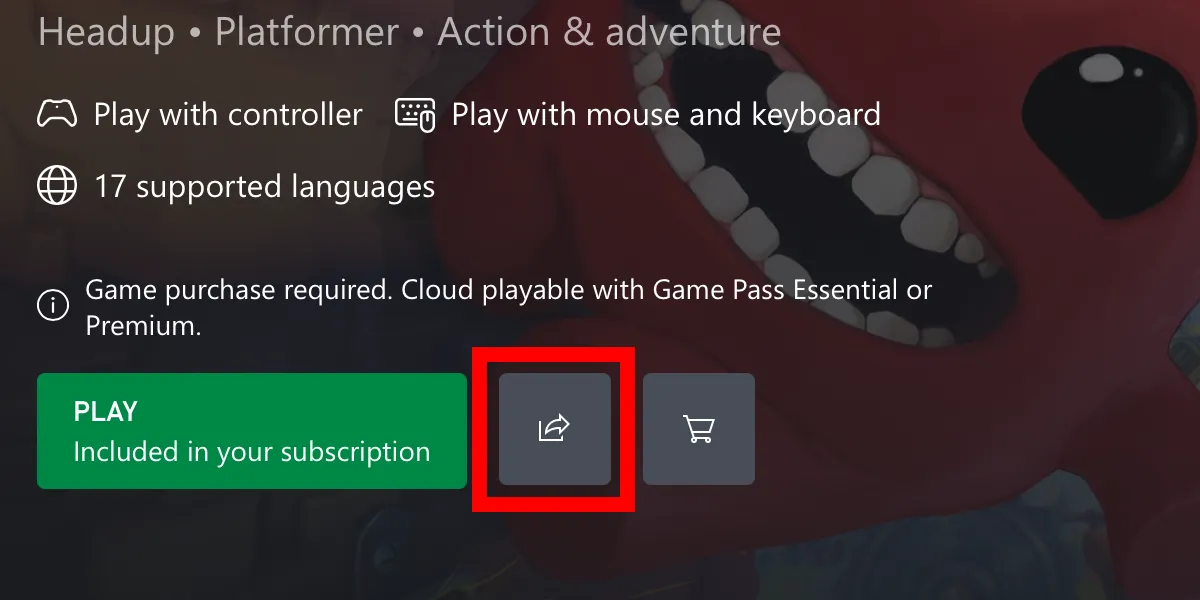
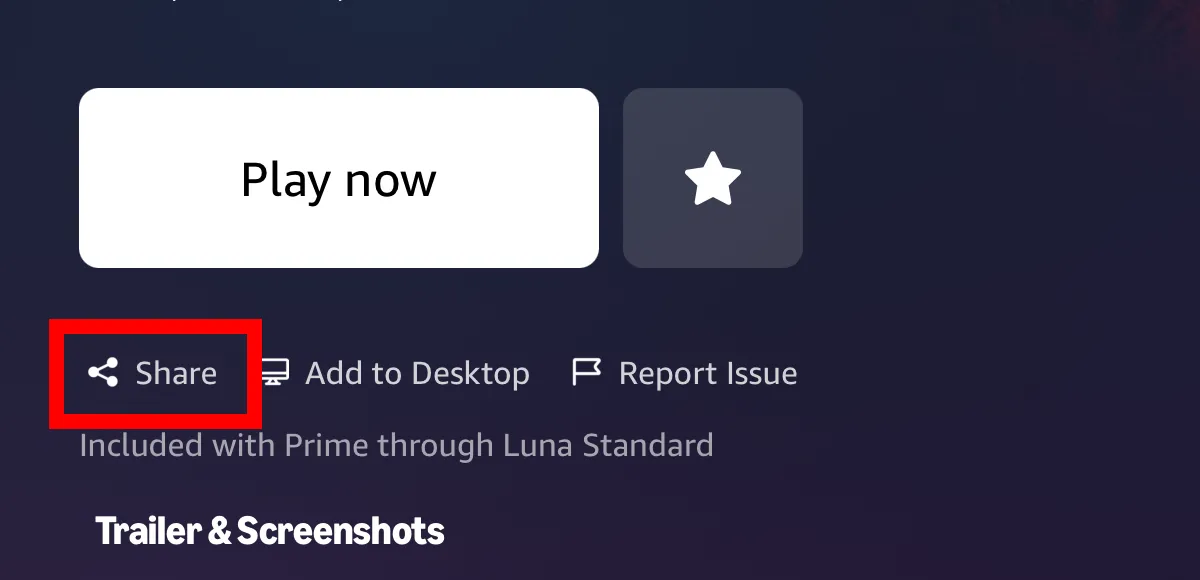
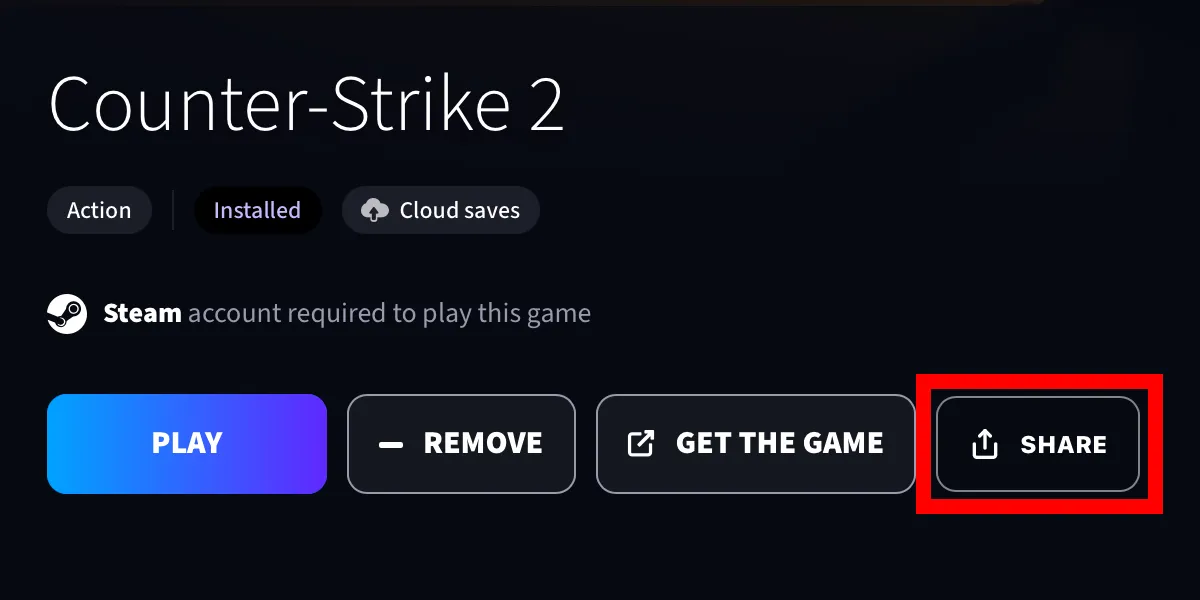
- Tap the Share button on the page.
- Select Add Quick Launch Bookmark.
- The new bookmark appears on your bookmark grid alongside your regular bookmarks. Tap it any time to launch the game directly.
Each service positions the Share button slightly differently. The screenshots below show exactly where to look on each one.
GeForce NOW
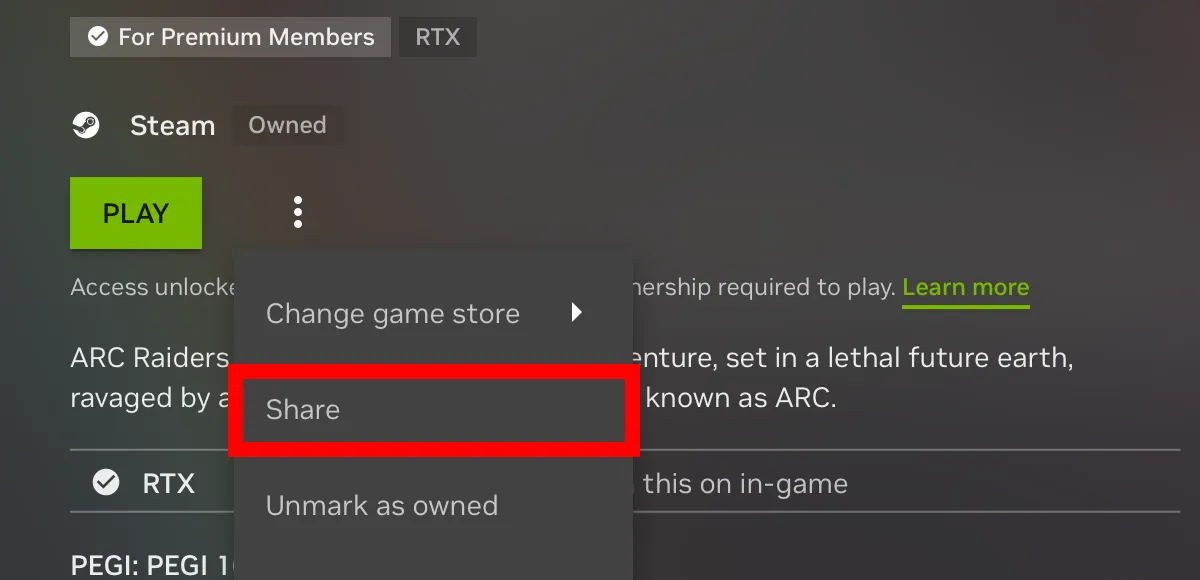
Xbox Cloud Gaming
Amazon Luna
Boosteroid
Quick Launch bookmarks live alongside your regular bookmarks — they don’t replace them. Use a regular bookmark when you want to browse the service’s full catalogue, and a Quick Launch bookmark when you already know exactly what you want to play.
Adding a Bookmark to Your iOS Home Screen as a Widget
Any bookmark — Quick Launch or regular — can be placed on your iOS Home Screen as a widget. Tapping the widget opens CloudGear and launches the bookmark directly, so you can go from your Home Screen to in-game in a single tap, without first opening CloudGear and choosing a bookmark.
- Long-press an empty area of your iOS Home Screen and tap Edit, then Add Widget, to open the widget gallery.
- Search for CloudGear and select the Quick Launch widget.
- Add the widget to your Home Screen.
- Choose which bookmark the widget should display.
- From now on, tapping the widget opens CloudGear and launches that bookmark directly.
Repeat the steps for as many widgets as you’d like — most users build a small grid of their favourite games for instant access.
Tips
Display options. You can change how Quick Launch bookmarks appear on both the bookmark grid and the widget. In CloudGear’s Settings, look for:
- Thumbnail view — choose between Zoom & crop (artwork zooms to cover the whole tile, edges may be cropped) and Full image (the entire artwork is shown within the tile without cropping).
- Show service on thumbnails — toggle the small service icon overlay on Quick Launch tiles.
- Show title on thumbnails — toggle whether the bookmark’s title appears on its tile.
iCloud sync. Bookmarks sync automatically across all your iPhones and iPads via iCloud. Create a Quick Launch bookmark on your iPhone, and it appears on your iPad automatically.