· Guides
How to Play Fortnite on iPhone & iPad in 2026 (4K, Mouse & Controller Rumble Guide)
Fortnite left the App Store, but you can still play it on iPhone & iPad through cloud gaming — with up to 4K, rumble, and true mouse & keyboard. Here's how.

It has been years since Fortnite was removed from the App Store globally, but that hasn’t stopped millions of players from jumping back onto the island from their iPhones and iPads.
The secret? Cloud Gaming.
That’s the real unlock: you don’t buy a $500 console or a $2,000 gaming PC to run Fortnite at PC settings — you stream it to the iPhone or iPad you already own. The horsepower lives on a data-center GPU that stays current, so there’s no hardware to buy and no upgrades to chase. The only thing standing between you and that PC-quality experience is the browser you stream through.
While standard methods like Xbox Cloud Gaming allow you to play via Safari, they often come with frustrating limitations: low resolution (often stuck at 1080p), zero controller vibration, and no support for mouse and keyboard.
If you want to play Fortnite on iOS with PC-level graphics (up to 4K), controller rumble, and true mouse & keyboard support, you need to upgrade your browser.
In this guide, we’ll look at the “Standard” way most people play (and why it holds you back) before showing you the “Pro” way that turns your iPad into a high-end gaming rig.
Want the best version now? CloudGear unlocks the full experience — true mouse and keyboard, controller rumble, and crisp 4K — on a free 7-day trial, so you can try it before you pay a cent.

Rated 4.8★ from 900+ App Store ratings
“This app greatly improved the GeForce Now experience with mouse and keyboard support, higher resolution.” — ★★★★★ App Store review
Part 1: The “Standard” Way (Free & Simple, But Limited)
If you don’t want to download an extra app and are okay with basic performance, you can use the standard Safari method. This is fine for casual “Zero Build” matches or checking the item shop, but it has significant drawbacks for competitive play.
The Limitations of Safari:
- No Mouse & Keyboard: Safari completely blocks mouse gaming input. You cannot lock your cursor, meaning you cannot aim, build, or edit with a mouse.
- No Rumble: You will not feel any vibration when shooting or driving, making the game feel “flat.”
- Resolution Caps: Stream quality is often restricted to 1080p, looking blurry on larger iPad screens.
- Screen Clutter: Safari does not support proper full screen, so the browser navigation bar and iOS status bar often remain visible during gameplay, shrinking your view and breaking immersion.
Step-by-Step Guide for Safari:
- Open Safari on your iPhone or iPad.
- Visit xbox.com/play (for Xbox) or play.geforcenow.com (for NVIDIA).
- Tap the Share Button (the square with an arrow pointing up).
- Scroll down and select “Add to Home Screen.”
- Close Safari and tap the new app icon that appeared on your home screen.
- Sign in and launch Fortnite.

Part 2: The “Pro” Way (Best Graphics & Controls)
If you want to compete with PC and Console players, you need a browser that removes Safari’s restrictions. CloudGear is a specialized browser designed specifically for cloud gaming on iOS.
“The iPad finally becomes a gaming console with CloudGear.” — MacStories
Why use this method?
- True Mouse & Keyboard Support: CloudGear offers “True Mouse Pointer Lock,” allowing you to aim, build, and edit with a mouse just like on a PC.
- Universal Controller Rumble: CloudGear enables native rumble on any supported controller with motors.
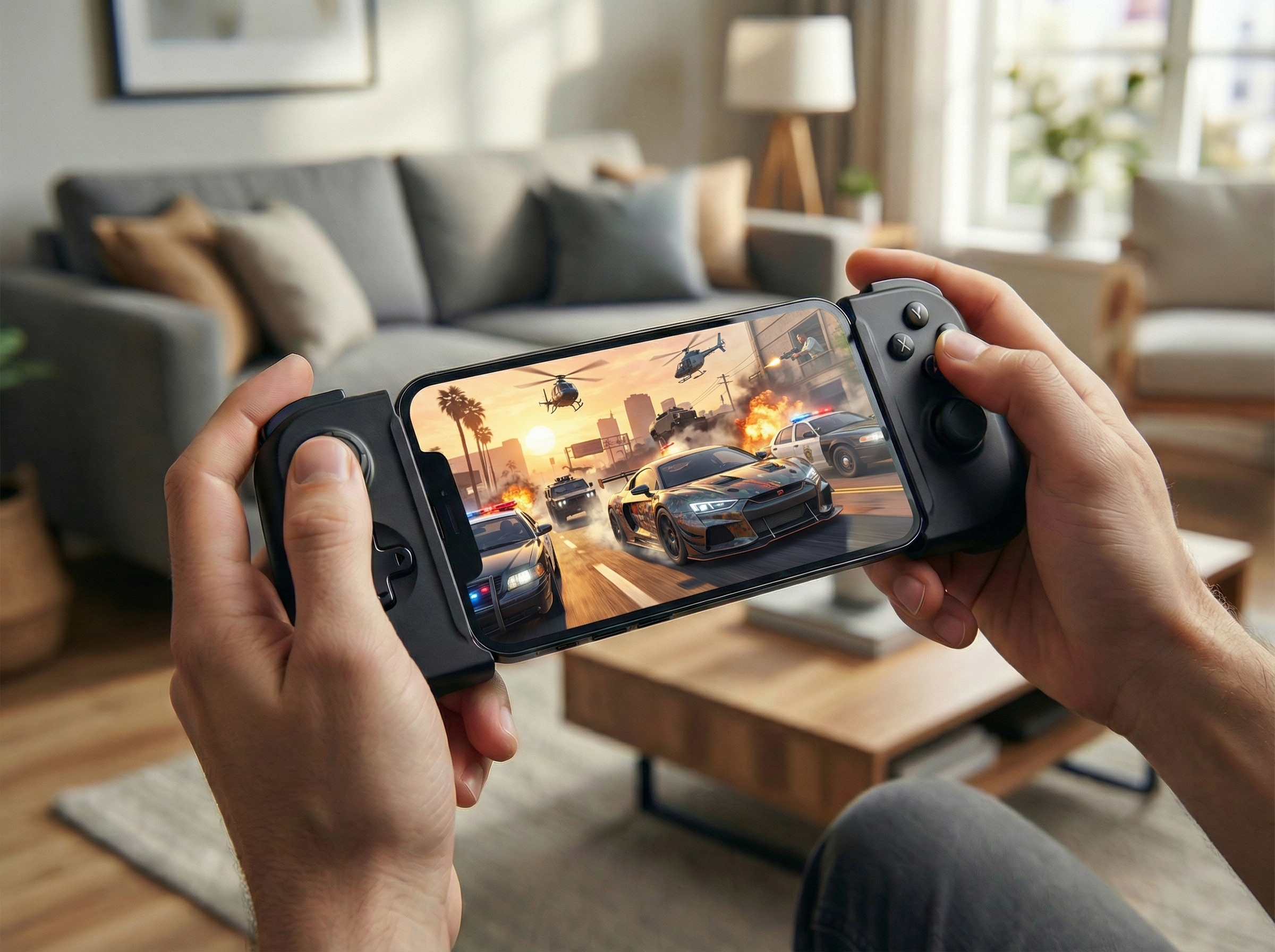
- Haptic Fallback: Using a mobile controller (like a Backbone) that doesn’t have motors? CloudGear can use your iPhone’s built-in haptics to simulate controller vibration, so you still feel the action.
- True 4K Resolution: Unlock the full visual potential of GeForce Now Ultimate, looking incredibly sharp on iPad Pro screens.
- Immersive Full Screen: Unlike Safari, CloudGear provides an edge-to-edge view with a hidden navigation bar you can reveal with intuitive gestures. It removes all distractions so you can focus entirely on the game.
- External Monitor Support: Connect your iPhone/iPad to a TV via HDMI, and CloudGear fills the entire screen (no black bars), effectively turning your phone into a console.

Step-by-Step Guide:
- Download CloudGear: Get the app from the App Store.
- Choose Your Service (pick one): Open CloudGear and tap whichever suits you:
- GeForce Now — best for 4K and mouse & keyboard.
- Xbox Cloud Gaming — best for controller play, no streaming subscription needed.
- Configure for Performance:
- GeForce Now: Once you are logged into the NVIDIA GeForce Now website inside CloudGear, tap the Menu (≡) button > Settings > Gameplay > Streaming Quality. Select Custom and choose your desired resolution (e.g., 3840x2160 for 4K on iPad Pro) and frame rate.
- Xbox: Xbox Cloud Gaming automatically adjusts resolution based on your connection; no manual configuration is needed.
- Launch Fortnite: Log in, launch the game, and drop in.
Part 3: Which Cloud Service is Right for You?
1. NVIDIA GeForce Now (Recommended for Pros)
- Best For: Players who want the absolute best graphics and input response.
- Resolution: Up to 4K/120FPS (requires Ultimate tier).
- Cost: Free (1-hour sessions) or Paid (Priority/Ultimate).
- Why we like it: It connects to your Epic Games account, so you can play the PC version of Fortnite. This means you get the same graphics settings, Ray Tracing, and lobby options as a high-end PC user.
2. Xbox Cloud Gaming (Best for Casuals)
- Best For: Players who want to play for free without a subscription.
- Resolution: Capped at 1080p (variable bitrate).
- Cost: Free (No Game Pass subscription required specifically for Fortnite).
- Why we like it: It’s completely free. You just need a Microsoft account. However, during live events or new season launches, queue times can be long (15-60+ minutes).

How does CloudGear compare to Safari?
CloudGear | Safari | |
|---|---|---|
| Visuals & Performance | ||
| Max Video Resolution (with GFN Ultimate) | 5120 x 2880 | 1600 x 1200 |
| Max Frame Rate (with GFN Ultimate) | 120 FPS | 60 FPS |
| Max Bitrate (with GFN Ultimate) | 100 Mbps | 75 Mbps |
| HDR | ||
| 10-Bit Color | ||
| Low Latency Rendering | ||
| Frame Pacing | ||
| Video Codecs | H.264, H.265, AV1 | H.264 |
| Controls & Input | ||
| Controller Vibration / Rumble | ||
| Mouse Pointer Lock | ||
| Keyboard Lock | ||
| Custom Mouse Sensitivity | ||
| Custom Rumble Sensitivity | ||
| Scroll Direction Inversion | ||
| Use Device Haptics For Rumble (iPhone Only) | ||
| Valve Steam Controller Support | ||
| Virtual Mouse (Touch Gestures) | ||
| Controller Button Remapping | ||
| Thumbstick Anti-deadzone | ||
| Audio | ||
| 7.1 Surround Sound (with GFN Ultimate) | ||
| Background Audio Playback | ||
| Spatial Audio | ||
| System Integration | ||
| Immersive Fullscreen | ||
| Configurable Video Sizing | ||
| Clutter-Free Interface | ||
| Native Resolution External Display & AR Glasses | ||
| Quick Launch Bookmarks | ||
| Home Screen Widgets | ||
| Built-in "Better xCloud" Manager | ||
| Configurable Background Idle Timeout | ||
| Prevent Screen Dimming | ||
| Landscape Lock While Streaming (iPhone Only) | ||
| Play on Apple TV | ||
| Live Performance Overlay | ||
| Auto Resolution Matching | ||
Part 4: Optimizing Your Setup
To get that “Console Killer” experience, your hardware setup matters.
1. Internet Connection
- WiFi: Always use a 5GHz WiFi connection. 2.4GHz is too slow and will cause lag/stuttering.
- Ethernet: For the lowest latency on iPad, use a USB-C Hub with an Ethernet port.
2. Controllers & Peripherals
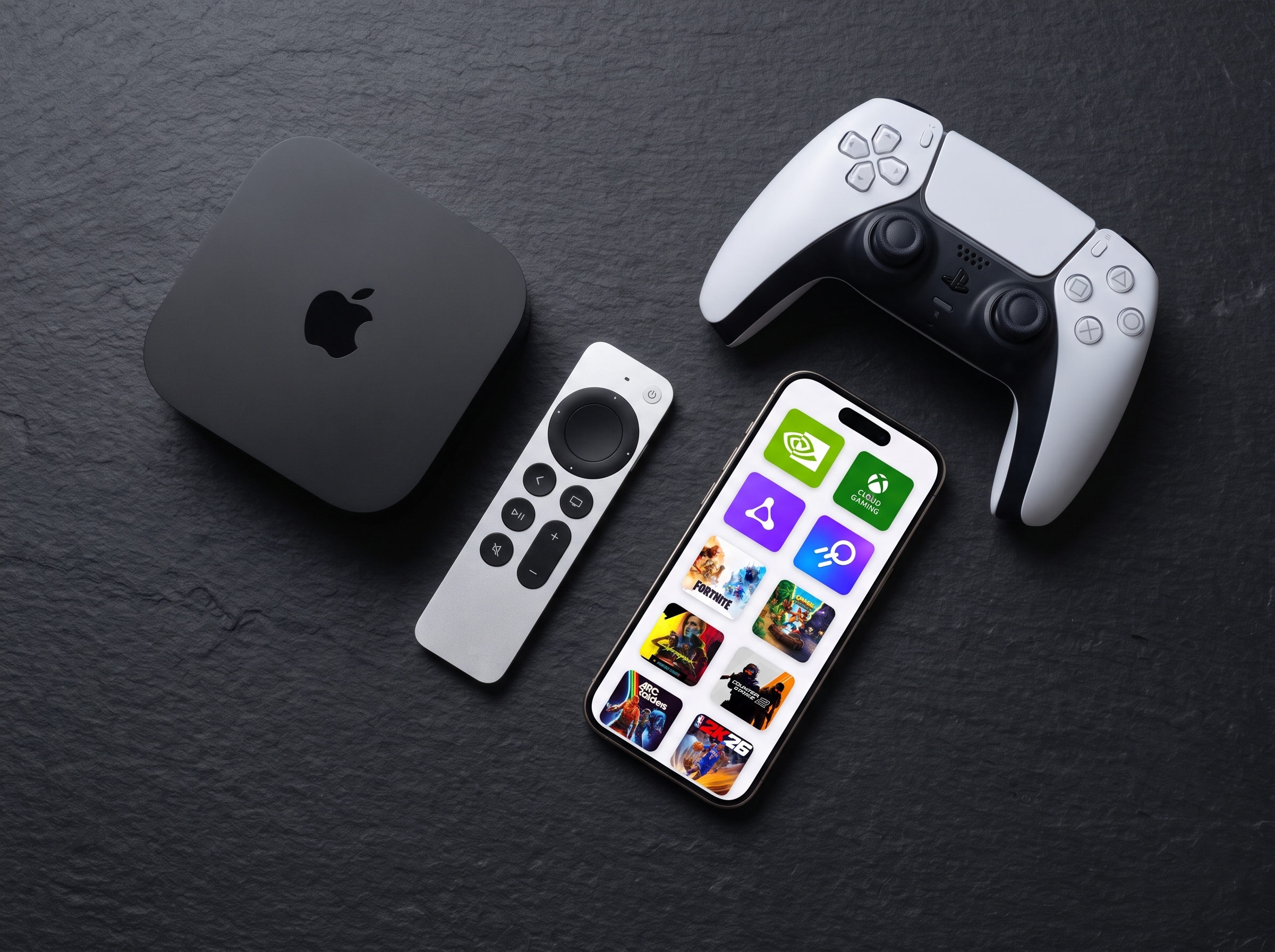
- For iPhone: The Backbone One or Razer Kishi Ultra are great options. Even if they lack motors, CloudGear’s Haptic Fallback will use your iPhone’s vibration engine to provide feedback.
- For iPad: Use any standard Bluetooth controller (Xbox Series X/S, PS5 DualSense, etc). CloudGear will enable their native rumble motors.
- Mouse & Keyboard: Any Bluetooth or USB-C keyboard/mouse works. Mechanical keyboards are great for that tactile response while building.
3. The “Console” Mode
Did you know your iPhone or iPad can output video to a TV?
- Plug a USB-C or Lightning to HDMI adapter into your device.
- Connect it to your TV.
- Open CloudGear and launch Fortnite.
- The app will output a full-screen signal to your TV, effectively turning your phone into an Xbox.

Conclusion
You don’t need to wait for Apple to change its App Store rules to enjoy Fortnite the way it was meant to be played. Cloud gaming puts a high-end gaming rig in your pocket — no console to buy, no upgrades to chase.
Through Safari, you only get part of it: no mouse, no rumble, capped resolution, and a cluttered, partial screen. CloudGear unlocks the rest — true mouse and keyboard, controller rumble, and crisp 4K full-screen — so your iPhone or iPad plays Fortnite like the high-end rig that’s streaming it.
“Absolutely perfect browser for GeForce Now and Xcloud, infinitely superior experience to Safari and other browsers.” — ★★★★★ App Store review
Ready to drop in the way Fortnite is meant to be played? Start your free 7-day trial.